
-
×
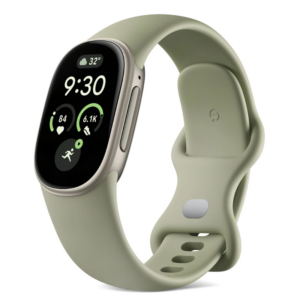 Google Fitbit Edge Fitness & Health Tracking Smart Band Green
5 × 86.900 OMR
-
×
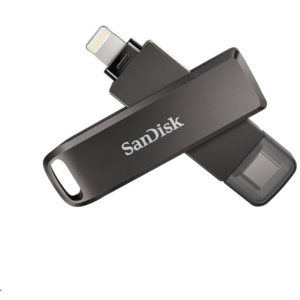 Sandisk Flash Drive i-xpand Dual Luxe 64GB Type-C to Lightning
9 × 11.500 OMR
-
×
 Sony Ps 5 Spider Man Miles Morales CD
1 × 9.900 OMR
-
×
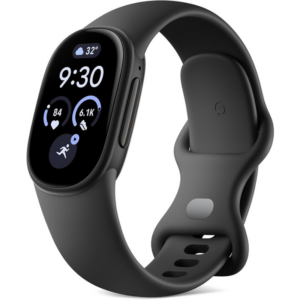 Google Fitbit Edge Fitness & Health Tracking Smart Band Black
5 × 86.900 OMR
-
×
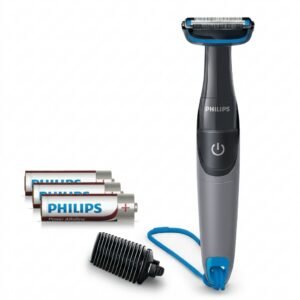 Philips 1000 Series Body Groomer BG1025/15
1 × 10.900 OMR
-
×
 Cleo Plastic Recorder
1 × 0.700 OMR
-
×
 USAMS Iphone 11 Pro Metal Camera Lens Glass Film
1 × 1.900 OMR
-
×
 OMNIKEY 3121 CARD READER
1 × 7.900 OMR
-
×
 Acer Normal Laptop Adapter 19v 3.42a
1 × 8.000 OMR
-
×
 Hp GT52 Original Ink Cartridge (M0H54AE),Cyan
1 × 4.500 OMR
-
×
 Earldom Hdmi to Usb C adapter ET W39
1 × 2.400 OMR
-
×
 4 In 1 Mobile Game Combo Pack
1 × 8.900 OMR
-
×
 Used NOKIA 9300
1 × 55.000 OMR
-
×
 Bm 13k Bee Melodica
1 × 5.900 OMR
Subtotal: 1,088.500 OMR
 New Arrivals
 Offers
 Service & Repair



There are no reviews yet.