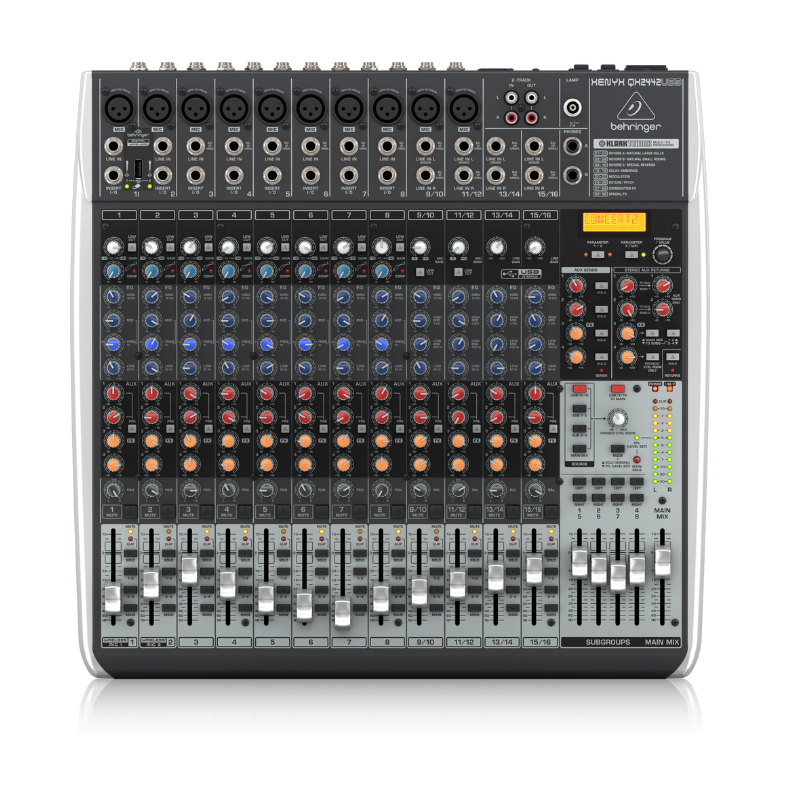
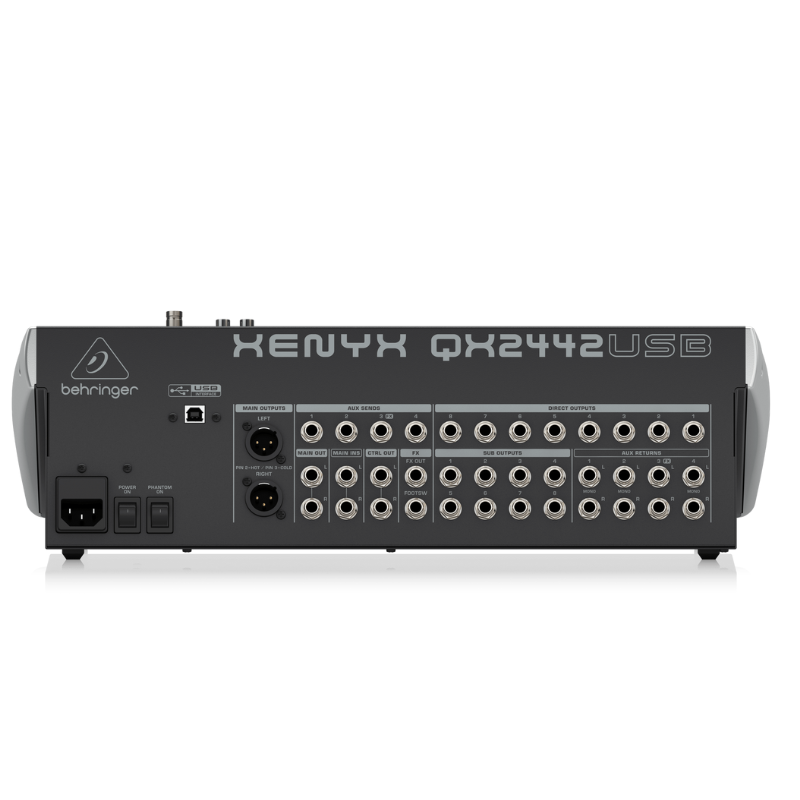
1. **Connecting Inputs**: Begin by connecting your microphones and other audio sources to the mixer’s input channels. The QX2442 has 10 XLR microphone inputs and 4 stereo line inputs, offering flexibility for various audio sources.
2. **Adjusting Levels**: Set the input levels using the gain controls located next to each input channel. Adjust these carefully to ensure optimal signal without clipping or distortion, indicated by the LED meters on each channel.
3. **Mixing and Effects**: Use the channel faders to adjust the volume of each input channel in your mix. The QX2442 includes built-in digital effects such as reverb, delay, chorus, and more. Use the FX send controls to add effects to individual channels or the entire mix.
4. **Monitoring**: Connect headphones to the headphone jack on the mixer for monitoring purposes. Use the headphone level control to adjust the volume to a comfortable level.
5. **Output and Recording**: Connect your main speakers or amplifier to the main outputs of the mixer. If you want to record your mix, use the USB connection to connect the mixer to your computer. Adjust the main output level to achieve the desired sound level in your venue or recording.
SONY PS5 Spider Man Marvel Miles Morales Eng. Game CD
Cleo-TY Sparkblade LED Samurai Katana Toy 8899Y1
Denx Wireless Portable Juicer DX3227
Candc DC C9 Cardioid Microphone
Boya Larger Diaphragm Condenser Microphone By M1000
WRIST WATCH CK 102S BLOOD PRESSURE MONITOR
SONY PS4 STAR WARS SQUADRONS GAME CD
Tolaye Ks06 Keyboard Stand
Biba Flute Deluxe
XP PEN DECO01 V2 GRAPHICS TABLET
Canon GI-46BK Yellow Ink Bottle
USAMS Iphone 11 Pro Metal Camera Lens Glass Film
Bm 13k Bee Melodica
Boya Lavalier Microphone By M40d
Denx Multifunctional Grinder DX3221 200G
XBOX WIRELESS CONTROLLER CARBON BLACK
Kalimba 17 Keys Finger Piano
New Arrivals
Offers
Service & Repair


There are no reviews yet.