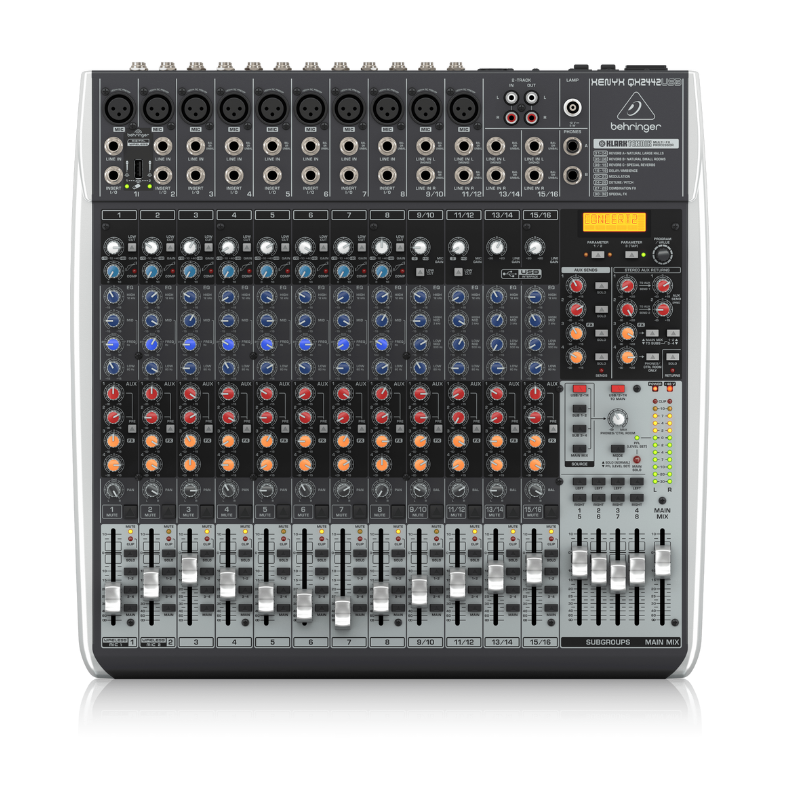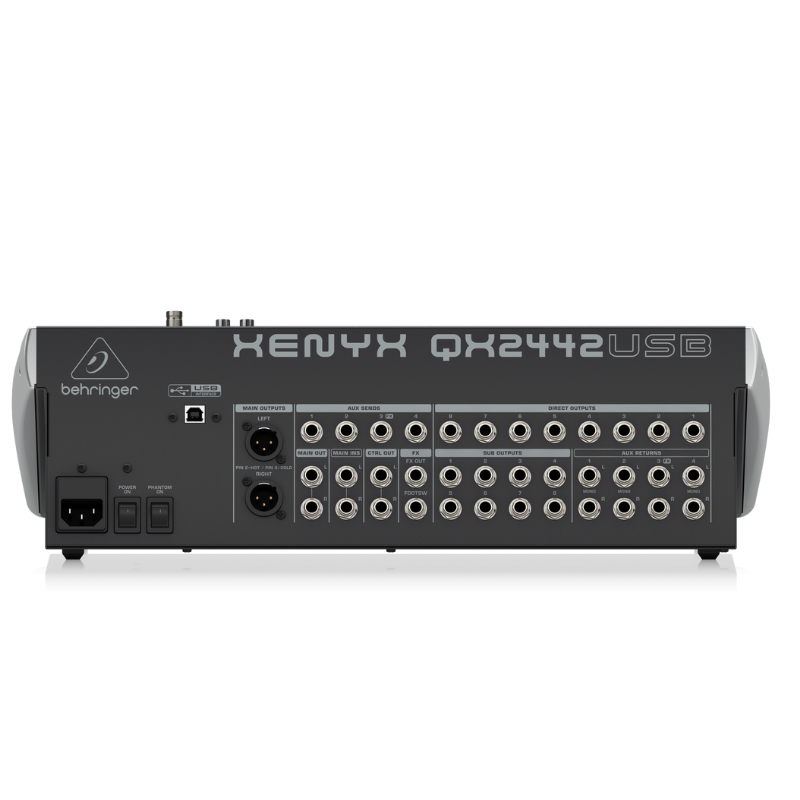
1. **Connecting Inputs**: Begin by connecting your microphones and other audio sources to the mixer’s input channels. The QX2442 has 10 XLR microphone inputs and 4 stereo line inputs, offering flexibility for various audio sources.
2. **Adjusting Levels**: Set the input levels using the gain controls located next to each input channel. Adjust these carefully to ensure optimal signal without clipping or distortion, indicated by the LED meters on each channel.
3. **Mixing and Effects**: Use the channel faders to adjust the volume of each input channel in your mix. The QX2442 includes built-in digital effects such as reverb, delay, chorus, and more. Use the FX send controls to add effects to individual channels or the entire mix.
4. **Monitoring**: Connect headphones to the headphone jack on the mixer for monitoring purposes. Use the headphone level control to adjust the volume to a comfortable level.
5. **Output and Recording**: Connect your main speakers or amplifier to the main outputs of the mixer. If you want to record your mix, use the USB connection to connect the mixer to your computer. Adjust the main output level to achieve the desired sound level in your venue or recording.
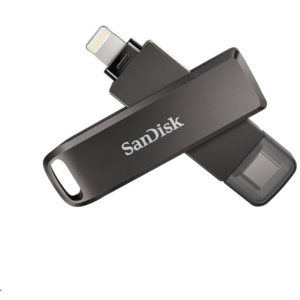
Sandisk Flash Drive i-xpand Dual Luxe 64GB Type-C to Lightning
YH 25 PS4 Multifunctional Heat Dissipation Charging Bracket
Bm 13k Bee Melodica
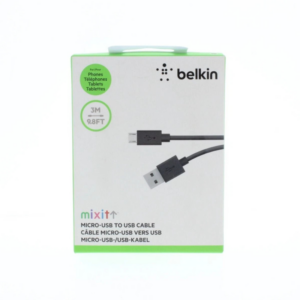
Belkin F2CU012bt Mixit Cable Usb A to Micro 3mtr
FANTECH FTK 801 NUMERIC KEY PAD
Google Fitbit Edge Fitness & Health Tracking Smart Band Black
Google Fitbit Edge Fitness & Health Tracking Smart Band Green
WAHL 8467 SUPER TAPER
DOBE PS4 TP4 023B Charging STAND
Yesido Phone Holder C83 Magnetic
Behringer Hpx 2000 Headphone
Tolaye Ks06 Keyboard Stand
New Arrivals
Offers
Service & Repair


There are no reviews yet.