
-
×
 OMNIKEY 3121 CARD READER
1 × 7.900 OMR
OMNIKEY 3121 CARD READER
1 × 7.900 OMR -
×
 Hitachi Drum Vacuum Cleaner CV955NBLGM 18L 2100W
1 × 44.800 OMR
Hitachi Drum Vacuum Cleaner CV955NBLGM 18L 2100W
1 × 44.800 OMR -
×
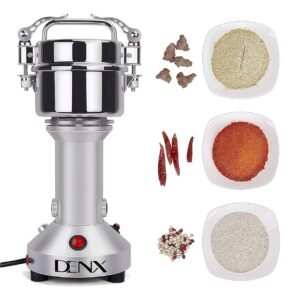 Denx Multifunctional Grinder DX3221 200G
2 × 14.900 OMR
Denx Multifunctional Grinder DX3221 200G
2 × 14.900 OMR -
×
 Max Bms 135 Boom Mic Stand
2 × 9.500 OMR
Max Bms 135 Boom Mic Stand
2 × 9.500 OMR -
×
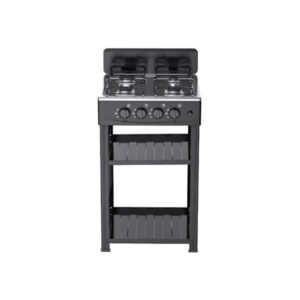 Denx 4 Burner Gas Stove DX2813
1 × 19.900 OMR
Denx 4 Burner Gas Stove DX2813
1 × 19.900 OMR -
×
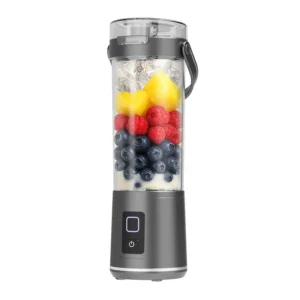 Denx Wireless Portable Juicer DX3227
3 × 4.900 OMR
Denx Wireless Portable Juicer DX3227
3 × 4.900 OMR -
×
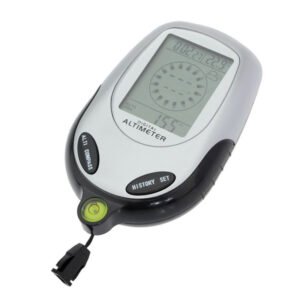 Multifunctional Digital Altimeter
1 × 6.400 OMR
Multifunctional Digital Altimeter
1 × 6.400 OMR -
×
 Tolaye Ks06 Keyboard Stand
1 × 14.000 OMR
Tolaye Ks06 Keyboard Stand
1 × 14.000 OMR -
×
 SANDISK Cruzer Blade Flash 128GB FLASH DRIVE
1 × 5.900 OMR
SANDISK Cruzer Blade Flash 128GB FLASH DRIVE
1 × 5.900 OMR -
×
 Kalimba 17 Keys Finger Piano
1 × 13.800 OMR
Kalimba 17 Keys Finger Piano
1 × 13.800 OMR -
×
 Boya Lavalier Microphone By M40d
1 × 20.000 OMR
Boya Lavalier Microphone By M40d
1 × 20.000 OMR -
×
 Boya By Wm8 Pro K2 Uhf Dual Channel Wireless Microphone
1 × 76.800 OMR
Boya By Wm8 Pro K2 Uhf Dual Channel Wireless Microphone
1 × 76.800 OMR -
×
 Bodycare Massage Chair BC 011
1 × 39.900 OMR
Bodycare Massage Chair BC 011
1 × 39.900 OMR -
×
 TP Link HD 720P CLOUD CAMERA 300 Mbps WiFi NC 250
1 × 11.900 OMR
TP Link HD 720P CLOUD CAMERA 300 Mbps WiFi NC 250
1 × 11.900 OMR -
×
 Washburn Oss Ou2 Ukulele
1 × 35.000 OMR
Washburn Oss Ou2 Ukulele
1 × 35.000 OMR
Subtotal: 359.800 OMR
 New Arrivals
 Offers
 Service & Repair


There are no reviews yet.