
-
×
 Apple Ipad Pro 12.9" 4th Gen Smart Keyboard Folio
1 × 94.900 OMR
Apple Ipad Pro 12.9" 4th Gen Smart Keyboard Folio
1 × 94.900 OMR -
×
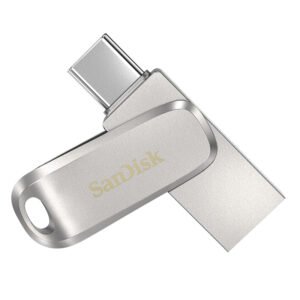 Sandisk Flash Drive Ultra Dual Luxe Type C 64Gb
1 × 5.900 OMR
Sandisk Flash Drive Ultra Dual Luxe Type C 64Gb
1 × 5.900 OMR -
×
 ENGENIUS EDS 1130 Smart Camera
1 × 22.400 OMR
ENGENIUS EDS 1130 Smart Camera
1 × 22.400 OMR -
×
 Sandisk Flash Drive Ultra Ixpand Flip 256GB
1 × 18.900 OMR
Sandisk Flash Drive Ultra Ixpand Flip 256GB
1 × 18.900 OMR -
×
 Bm 13k Bee Melodica
1 × 5.900 OMR
Bm 13k Bee Melodica
1 × 5.900 OMR -
×
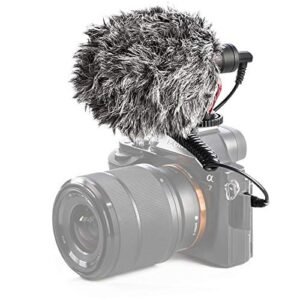 Candc DC C9 Cardioid Microphone
1 × 3.500 OMR
Candc DC C9 Cardioid Microphone
1 × 3.500 OMR -
×
 Cleo-TY Toyota Land Cruiser GR Metal Car Ht 1901 202
1 × 6.800 OMR
Cleo-TY Toyota Land Cruiser GR Metal Car Ht 1901 202
1 × 6.800 OMR -
×
 DOBE PS4 TP4 023B Charging STAND
1 × 6.900 OMR
DOBE PS4 TP4 023B Charging STAND
1 × 6.900 OMR -
×
 Tovaste Mol1C (Xlr+Xlr) Mic Cable
1 × 4.500 OMR
Tovaste Mol1C (Xlr+Xlr) Mic Cable
1 × 4.500 OMR -
×
 Boya By Wm8 Pro K2 Uhf Dual Channel Wireless Microphone
1 × 76.800 OMR
Boya By Wm8 Pro K2 Uhf Dual Channel Wireless Microphone
1 × 76.800 OMR -
×
 Biba Flute Deluxe
1 × 6.500 OMR
Biba Flute Deluxe
1 × 6.500 OMR
Subtotal: 253.000 OMR
 New Arrivals
 Offers
 Service & Repair



There are no reviews yet.