
-
×
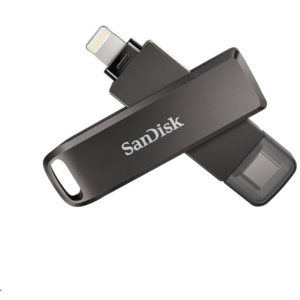 Sandisk Flash Drive i-xpand Dual Luxe 64GB Type-C to Lightning
4 × 11.500 OMR
-
×
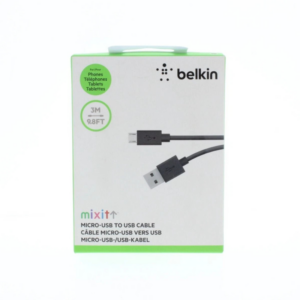 Belkin F2CU012bt Mixit Cable Usb A to Micro 3mtr
1 × 1.900 OMR
-
×
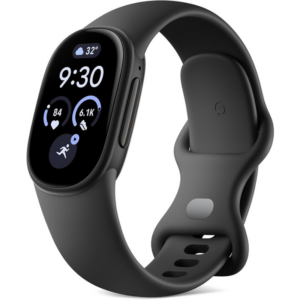 Google Fitbit Edge Fitness & Health Tracking Smart Band Black
1 × 86.900 OMR
-
×
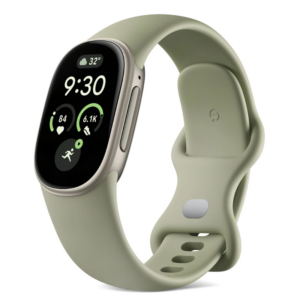 Google Fitbit Edge Fitness & Health Tracking Smart Band Green
1 × 86.900 OMR
-
×
 SONY PS4 Rock of Ages 3 Game CD
1 × 13.800 OMR
-
×
 SONY PS4 FINAL FANTASY VII GAME CD
1 × 17.700 OMR
-
×
 SONY PS4 MX VS ATV ALL OUT GAME CD
1 × 18.800 OMR
-
×
 Philips Dry Iron HD1172/27
1 × 5.800 OMR
-
×
 Anker Earbuds D1203H11 Soundcore Liberty 5 Pro Black
1 × 64.900 OMR
-
×
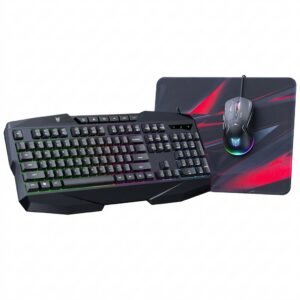 Onikuma 3-in-1 Professional Gaming Combo TZ3006
1 × 8.900 OMR
-
×
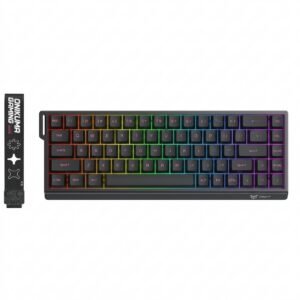 Onikuma Gaming Keyboard MT603
1 × 12.900 OMR
-
×
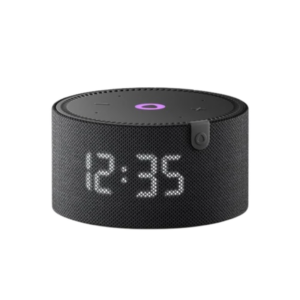 Yasmina Mini Smart Portable Bluetooth Speaker Black
1 × 24.900 OMR
-
×
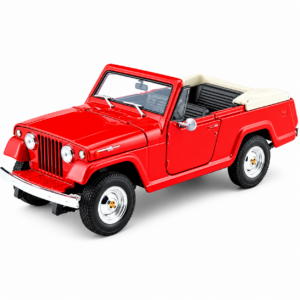 Welly Metal Car Jeep Jeepster Commando Roadster Size 1.24 WL-24117C-W
1 × 12.900 OMR
-
×
 Apple Ipad Pro 12.9" 4th Gen Smart Keyboard Folio
1 × 94.900 OMR
Subtotal: 497.200 OMR
 New Arrivals
 Offers
 Service & Repair


There are no reviews yet.