
 New Arrivals
 Offers
 Service & Repair

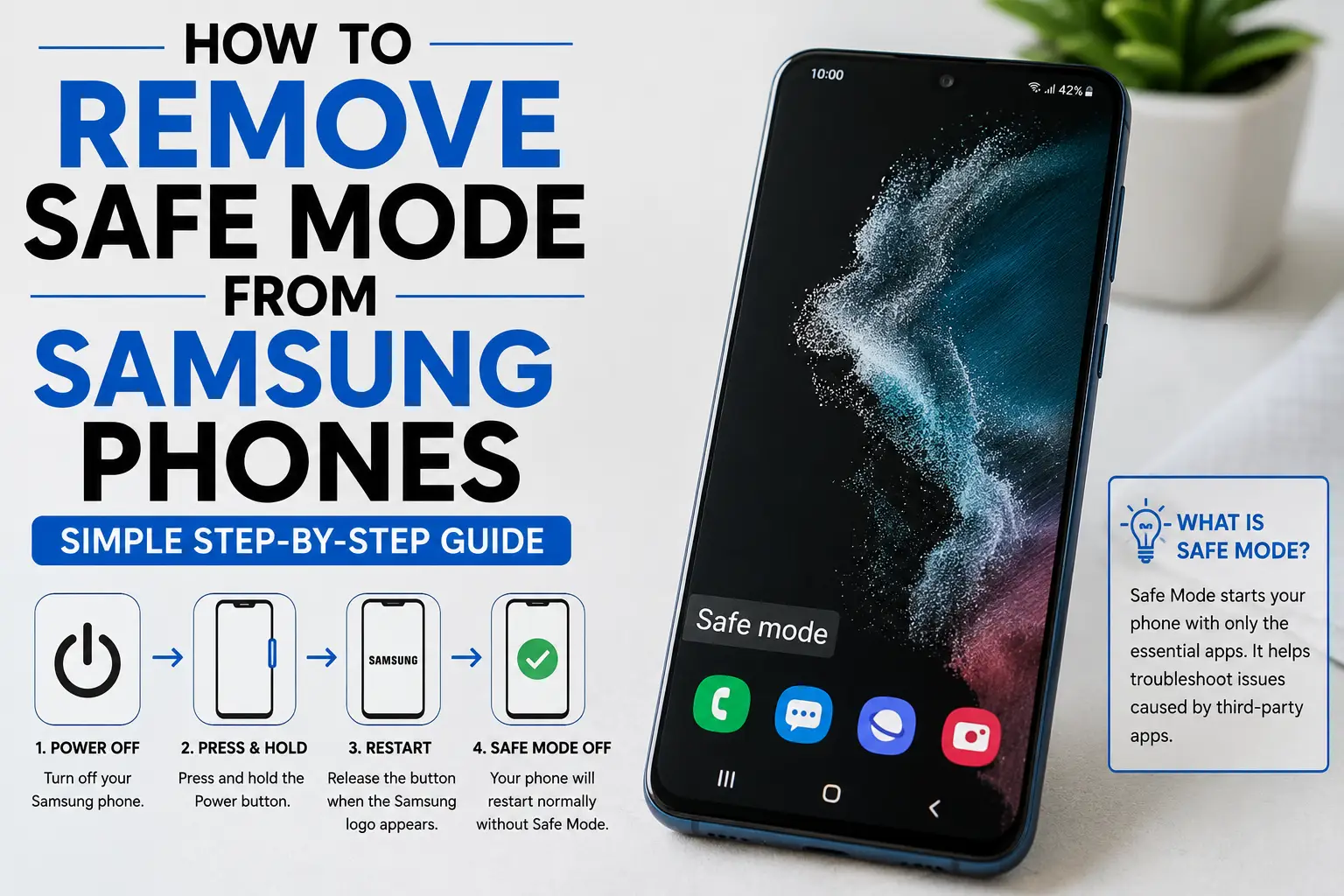
How to Remove Safe Mode from Samsung Phones: Simple Step-by-Step Guide Leave a comment
Seeing “Safe Mode” at the bottom of your Samsung phone’s screen doesn’t mean your device is damaged or that your data is at risk.
In most cases, it simply means your phone has entered a diagnostic mode that temporarily disables third-party apps.
If you’re wondering how to remove Safe Mode from a Samsung phone, start by restarting your device, turning off Safe Mode from the notification panel, or checking whether the Volume Down button is stuck.
These simple steps usually restore your apps without deleting your photos, files, or personal data.
However, if Safe Mode keeps returning after every restart, your phone may need a professional inspection to determine whether the issue is caused by a hardware button or the operating system.
In this guide from Cleopatra Oman, you’ll learn the correct methods in order, when you can solve the problem yourself, and when it’s safer to have your Samsung phone diagnosed by a professional.
How Do I Remove Safe Mode from a Samsung Phone?
If you’re asking how to remove Safe Mode from a Samsung phone, you can usually solve the problem without deleting your data.
If Safe Mode continues to return, Cleopatra Oman can help diagnose the issue.
Here are the most effective methods.
Restart Your Phone
Open the Power Menu, select Restart, and wait until the phone finishes rebooting.
A normal restart is often enough to exit Safe Mode.
Turn Off Safe Mode from the Notification Panel
Swipe down from the top of the screen.
Tap the Safe Mode is On notification, then select Turn Off.
Your phone will automatically restart in normal mode.
Force Restart if the Screen Freezes
If your phone becomes unresponsive, press and hold the Side Button and the Volume Down button together until the phone restarts.
Avoid performing a factory reset.
Check the Volume Down Button
Remove your phone case and make sure the Volume Down button isn’t stuck.
If the button remains pressed while the phone starts, Safe Mode may activate again.
If the issue keeps returning, have your device inspected by Cleopatra Oman, where specialized diagnostic tools can identify the exact cause.
buy now: samsung galaxy s23
Remove Safe Mode Using the Notification Panel
Samsung allows you to disable Safe Mode directly from the notification panel without deleting your files or changing your phone’s settings.
Follow these steps:
- Swipe down from the top of the screen to open the full notification panel.
- Find the Safe Mode is On notification.
- Tap the notification to open the disable option.
- Select Turn Off (or the equivalent option depending on your phone’s language).
- Wait for the phone to restart automatically.
- After rebooting, confirm that the Safe Mode label has disappeared from the bottom of the screen.
If the notification isn’t available or Safe Mode returns after restarting, consider having your Samsung phone checked by Cleopatra Oman instead of performing unnecessary troubleshooting.
Exit Safe Mode by Restarting Your Phone
In many cases, restarting your Samsung phone is all that’s needed to return to normal mode.
Here’s how:
- Press and hold the Side Button until the power options appear.
- On some newer Samsung models, press the Side Button and Volume Down together.
- Tap Restart.
- Confirm the restart if prompted.
- Wait until the phone finishes booting.
- Avoid pressing any volume buttons while the Samsung logo is displayed.
- After startup, check that the Safe Mode message has disappeared.
If Safe Mode remains active even after several restart attempts, Cleopatra Oman can inspect your phone to determine whether the issue is related to the hardware buttons or the operating system.
Exit Safe Mode When the Screen Is Frozen
If your Samsung phone freezes while in Safe Mode, you can usually perform a force restart without losing your data.
Follow these steps:
Disconnect Accessories
Remove:
- The charger
- Headphones
- USB accessories
to ensure no external device is affecting the phone’s operation.
Force Restart the Device
Press and hold the Side Button and the Volume Down button together for several seconds until the screen turns off and the Samsung logo appears.
Release the Buttons
As soon as the Samsung logo appears, release both buttons.
Do not press the volume buttons during startup, or Safe Mode may activate again.
Verify That Safe Mode Is Gone
Once the phone finishes booting, check whether the Safe Mode label has disappeared.
If the phone remains frozen or repeatedly enters Safe Mode, Cleopatra Oman can diagnose whether the problem is caused by the operating system or a hardware fault.
buy now: samsung galaxy a73 5g
Why Does Safe Mode Appear on Samsung Phones?
Safe Mode starts your Samsung phone using only its essential system software while temporarily disabling third-party applications.
If you’re asking how to remove Safe Mode from a Samsung phone, it’s important to understand why it appeared in the first place.
Common causes include:
Safe Mode Was Enabled Accidentally
You may have unintentionally selected Safe Mode while pressing and holding the Power Off option.
The phone will remain in Safe Mode until it is restarted normally.
Holding the Volume Down Button During Startup
Keeping the Volume Down button pressed while the Samsung logo appears can force the phone into Safe Mode.
This may happen accidentally or because a phone case is pressing the button.
A Stuck Volume Down Button
If Safe Mode returns after every restart, the Volume Down button may be stuck or damaged.
Remove the phone case and check whether the button moves freely.
Avoid opening the phone yourself.
Troubleshooting an App Problem
Safe Mode is designed to help identify whether a downloaded app is causing crashes or performance issues by temporarily disabling third-party apps.
If Safe Mode continues to activate without your input, Cleopatra Oman can inspect your device using professional diagnostic tools to identify the real cause before unnecessary repairs are performed.
Why Won’t Safe Mode Turn Off on Samsung?
If Safe Mode stays on after restarting your Samsung phone, there is usually an underlying cause preventing the device from returning to normal operation.
The table below outlines the most common reasons and what you can do to fix them.
| Possible Cause | What You’ll Notice | What You Should Do |
|---|---|---|
| The phone wasn’t fully restarted | The Safe Mode label remains after turning the screen off and on. | Restart the phone using the Power Menu instead of simply locking and unlocking the screen. |
| The Volume Down button is pressed during startup | The phone enters Safe Mode every time it boots. | Restart the phone without touching any volume buttons until startup is complete. |
| The Volume Down button is stuck | The button feels permanently pressed or doesn’t return normally. | Remove the phone case, gently clean around the button, and avoid opening the phone yourself if the problem continues. |
| The system freezes during startup | The phone becomes stuck on the Samsung logo or doesn’t respond. | Perform a force restart by holding the Side Button and Volume Down together without performing a factory reset. |
| Hardware or software failure | Safe Mode remains active after trying every available solution. | The phone requires professional diagnostics to determine whether the issue is caused by the operating system or damaged hardware. |
| You can’t identify the cause | Safe Mode keeps returning without an obvious reason. | Have your phone inspected by Cleopatra Oman, where specialized technicians can diagnose Samsung devices accurately. |
How to Stop Safe Mode from Returning
If Safe Mode keeps appearing every time you restart your Samsung phone, avoid performing a factory reset before identifying the real cause.
Try the following steps first.
Remove the Phone Case
Some phone cases continuously press the Volume Down button without you realizing it.
Remove the case, restart your phone, and avoid pressing any buttons while the Samsung logo is displayed.
Test the Volume Down Button
Press the button several times to confirm it moves freely and returns to its normal position.
Samsung notes that repeated Safe Mode activation may occur if the button is damaged or stuck.
Disable Safe Mode Correctly
If the Safe Mode is On notification appears, tap it and choose Turn Off.
Alternatively, restart the phone completely.
Simply locking and unlocking the screen will not exit Safe Mode.
Seek Professional Diagnosis
If Safe Mode still returns after confirming the button is functioning normally, the issue may involve the operating system or internal hardware.
Cleopatra Oman can perform a professional diagnosis using specialized tools instead of risking your data with unnecessary troubleshooting.
How to Check for a Stuck Volume Down Button
A stuck Volume Down button is one of the most common reasons Samsung phones repeatedly enter Safe Mode.
Before changing settings or resetting your device, inspect the button carefully.
Remove the Phone Case
An ill-fitting or damaged case may press the button continuously.
Remove it and restart the phone without touching any buttons.
Test the Button Movement
Press the Volume Down button several times.
It should move smoothly and return immediately after each press.
If it remains depressed or feels difficult to press, avoid opening the phone yourself.
Clean Around the Button
Use a clean, dry, soft cloth to remove visible dust around the button.
Avoid liquids or sharp tools that could push dirt further inside or damage the components.
According to Samsung, repeated Safe Mode activation may be linked to a stuck or damaged Volume Down button.
If cleaning doesn’t solve the issue, Cleopatra Oman can inspect your device using professional diagnostic equipment and recommend the appropriate repair without putting your data at risk.
Removing Safe Mode on Different One UI Versions
The correct method for exiting Safe Mode depends slightly on the version of Samsung One UI installed on your device.
| One UI Version | Recommended Method | Quick Steps |
|---|---|---|
| Modern One UI versions | Quick Settings Panel | Swipe down from the top of the screen, tap the Power icon, then choose Restart. |
| Versions displaying the Safe Mode notification | Notification Panel | Tap Safe Mode is On, then select Turn Off to restart the phone. |
| Devices where the Side Button opens the assistant | Side Button + Volume Down | Hold the Side Button and Volume Down together until the Power Menu appears, then tap Restart. |
| Older Galaxy phones with a dedicated Power Button | Power Button | Press and hold the Power Button, then choose Restart and wait for the phone to boot normally. |
| Any version with a frozen screen | Force Restart | Hold the Side Button and Volume Down together until the phone restarts, then release both buttons. |
Does Turning Off Safe Mode Delete Your Data?
No.
Disabling Safe Mode on a Samsung phone does not delete your photos, files, apps, or personal data.
Safe Mode simply disables third-party applications temporarily to help diagnose software problems.
Once you exit Safe Mode and restart your phone, those apps will work normally again.
So, if you’re wondering how to remove Safe Mode from a Samsung phone without losing your data, you can safely use the normal methods described in this guide.
Just make sure you do not select Factory Reset, as that is a completely different process that erases your device.
If your phone repeatedly returns to Safe Mode or you can’t disable it, Cleopatra Oman can inspect your Samsung device to determine whether the issue is caused by a faulty app, a stuck button, or another hardware problem before your data is put at risk.
When Does a Samsung Phone Need Professional Repair?
Your Samsung phone doesn’t require repair simply because Safe Mode appeared once.
Start by restarting the device and uninstalling any apps that were installed shortly before the problem began.
However, professional service is recommended if:
- Safe Mode appears after every restart.
- Safe Mode remains active after trying all the normal removal methods.
- The Volume Down button feels stuck or doesn’t respond properly.
- The phone has been dropped or exposed to liquid.
- The device repeatedly freezes or restarts by itself.
Samsung explains that a damaged or stuck Volume Down button can repeatedly trigger Safe Mode.
If any of these symptoms occur, Cleopatra Oman can diagnose the problem before unnecessary parts are replaced or unnecessary repairs are performed.
find out: samsung a54 price in oman
Samsung Phone Repair at Cleopatra Oman
If you’ve tried every method to exit Safe Mode and your Samsung phone still returns to it, avoid performing a factory reset or opening the device yourself.
The issue may be caused by:
- A stuck Volume Down button
- A software problem
- An internal hardware fault
Cleopatra is the best online mobile repair service in oman, Samsung phones are inspected using professional diagnostic equipment to identify the exact cause before any repair is carried out.
Our Samsung repair services include:
- Professional device diagnostics
- Repairs for multiple Samsung models
- Warranty on repair services
- Device pickup and delivery in selected areas across Oman
If none of the methods in this guide solve your Safe Mode issue, let Cleopatra Oman inspect your device first to protect your data and restore your phone safely.
Frequently Asked Questions
Can You Make Calls While Safe Mode Is Enabled?
Yes.
You can normally make and receive phone calls as well as send and receive text messages while Safe Mode is active.
Only some third-party apps may be disabled depending on your Samsung model and software version.
Does Mobile Internet Work in Safe Mode?
Yes.
Basic network connectivity remains available.
However, downloaded third-party apps are disabled in Safe Mode, so services that depend on those apps may not function normally even though your internet connection is still active.
Do the Camera and Built-in Apps Work in Safe Mode?
Yes.
Samsung’s built-in system apps usually continue working normally, while apps you installed from the Google Play Store or other sources are temporarily disabled.
This makes Safe Mode useful for determining whether an external app is causing the problem.
Does Safe Mode Change the Wallpaper or Theme?
On some Samsung devices, certain personalization settings such as wallpapers or themes may temporarily return to their default appearance while Safe Mode is active.
This does not indicate that your phone is damaged or that your files have been lost.
After exiting Safe Mode, you can simply reapply your preferred theme or wallpaper if needed.
Will My Phone Ask for My PIN After Restarting?
Yes.
After restarting, your Samsung phone may require your PIN, password, or unlock pattern before allowing fingerprint or face recognition.
This is a normal security feature that occurs after every reboot.
Does Safe Mode Permanently Fix Phone Problems?
No.
Safe Mode is a diagnostic tool, not a permanent repair.
If the issue disappears while Safe Mode is active, a third-party application is likely causing the problem.
If the issue continues even in Safe Mode, it may indicate a system malfunction or hardware failure.
If you cannot determine the cause, Cleopatra Oman offers professional Samsung diagnostics to identify the issue before any further action is taken.
Looking for a New Samsung Phone?
If you’re considering replacing your device instead of repairing it, explore the latest samsung galaxy smartphone offers available at Cleopatra Web and find the model that best suits your needs.
