
-
×
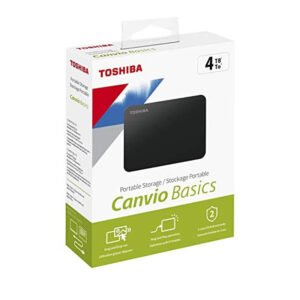 TOSHIBA STORE BASICS 4TB HARD DISK
1 × 47.900 OMR
TOSHIBA STORE BASICS 4TB HARD DISK
1 × 47.900 OMR -
×
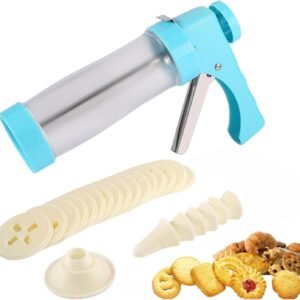 Denx Cookie Biscuit Gun DX3432
4 × 3.900 OMR
Denx Cookie Biscuit Gun DX3432
4 × 3.900 OMR -
×
 Cleo-SFO i Shoulder Massager
1 × 7.800 OMR
Cleo-SFO i Shoulder Massager
1 × 7.800 OMR -
×
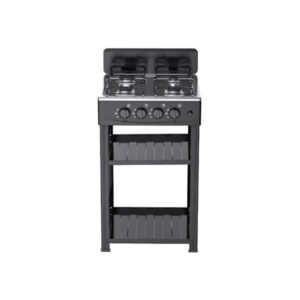 Denx 4 Burner Gas Stove DX2813
3 × 19.900 OMR
Denx 4 Burner Gas Stove DX2813
3 × 19.900 OMR -
×
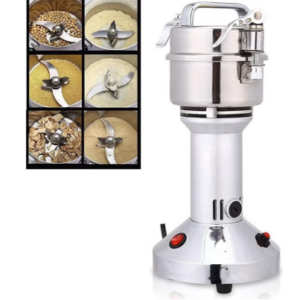 Denx Multifunctional Grinder DX3222 300G
2 × 16.900 OMR
Denx Multifunctional Grinder DX3222 300G
2 × 16.900 OMR -
×
 APPLE IPAD Pro 12.9 Inch 4TH GEN SMART KEYBOARD FOLIO
1 × 94.900 OMR
APPLE IPAD Pro 12.9 Inch 4TH GEN SMART KEYBOARD FOLIO
1 × 94.900 OMR -
×
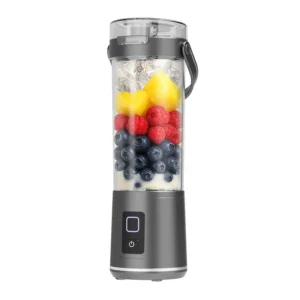 Denx Wireless Portable Juicer DX3227
3 × 4.900 OMR
Denx Wireless Portable Juicer DX3227
3 × 4.900 OMR -
×
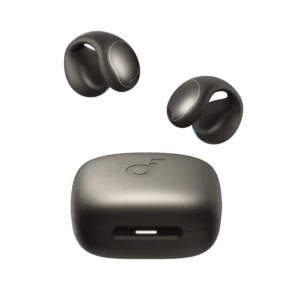 Anker Earbuds A331HZ1 Soundcore C40i Grey
1 × 24.900 OMR
Anker Earbuds A331HZ1 Soundcore C40i Grey
1 × 24.900 OMR -
×
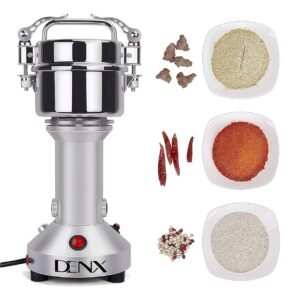 Denx Multifunctional Grinder DX3221 200G
1 × 14.900 OMR
Denx Multifunctional Grinder DX3221 200G
1 × 14.900 OMR -
×
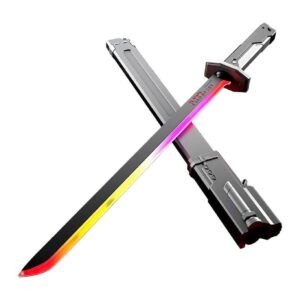 Cleo-TY Sparkblade LED Samurai Katana Toy 8899Y1
1 × 9.900 OMR
Cleo-TY Sparkblade LED Samurai Katana Toy 8899Y1
1 × 9.900 OMR -
×
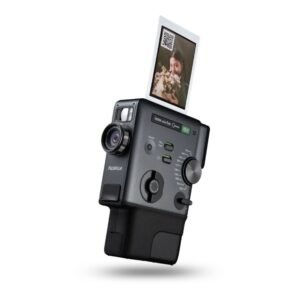 Fujifilm Instax Mini Evo Cinema Hybrid Instant Camera
1 × 154.900 OMR
Fujifilm Instax Mini Evo Cinema Hybrid Instant Camera
1 × 154.900 OMR -
×
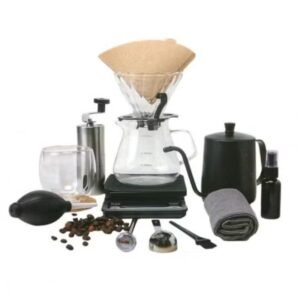 Denx Coffee Kit 15 in 1 DX4205
1 × 13.500 OMR
Denx Coffee Kit 15 in 1 DX4205
1 × 13.500 OMR -
×
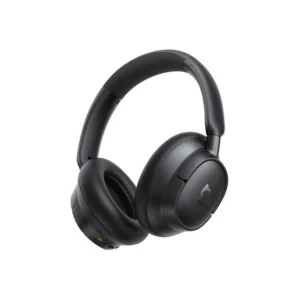 Baseus Wireless Headset A0203A07 Bass Bh1 NC Black
1 × 11.500 OMR
Baseus Wireless Headset A0203A07 Bass Bh1 NC Black
1 × 11.500 OMR -
×
 KARCHER SC 2 EASYFIX STEAM CLEANER
1 × 55.000 OMR
KARCHER SC 2 EASYFIX STEAM CLEANER
1 × 55.000 OMR -
×
 Xundd APPLE IPAD 10.9 (10thGen) Back Clear Case
1 × 3.900 OMR
Xundd APPLE IPAD 10.9 (10thGen) Back Clear Case
1 × 3.900 OMR -
×
 حامل الشحن DOBE PS4 TP4 TP4 023B
1 × 6.900 OMR
حامل الشحن DOBE PS4 TP4 TP4 023B
1 × 6.900 OMR
المجموع: 569.800 OMR
 أقل سعر
 الخدمة والإصلاح



لا توجد مراجعات حتى الآن.