1. **Unbox the USB Hub**: Remove the USB hub from its packaging and carefully inspect it for any damage.
2. **Locate Available USB Ports**: Identify the available USB ports on your computer or device where you want to connect the USB hub. Ensure that you have enough free USB ports for the hub.
3. **Connect the USB Hub**: Take the USB cable attached to the USB hub and plug it into an available USB port on your computer or device. Make sure the connection is secure.
4. **Power On the Hub (if needed)**: Some USB hubs may require external power to operate properly, especially if multiple devices will be connected simultaneously. If your USB hub has a power adapter, plug it into a power source and connect it to the hub.
5. **Insert Devices into the Hub**: Once the USB hub is connected and powered on, you can start connecting your devices to the hub. Insert the USB connectors of your devices (such as USB flash drives, external hard drives, or peripherals) into the available ports on the USB hub.
6. **Check for Recognition**: After connecting your devices, check your computer or device to ensure that they are recognized and functioning properly. You may need to wait a few moments for the devices to be detected and installed.
7. **Organize Cables (optional)**: If you have multiple devices connected to the USB hub, consider organizing the cables to avoid tangling or clutter. You can use cable ties or organizers to keep the setup neat and tidy.
8. **Monitor Device Performance**: Keep an eye on the performance of the devices connected to the USB hub. Ensure that they are functioning as expected and that there are no issues with data transfer or power supply.
9. **Disconnect Devices (when necessary)**: When you’re finished using the devices connected to the USB hub, safely eject them from your computer or device before disconnecting them from the hub. This helps prevent data loss or corruption.
10. **Power Off the Hub (if applicable)**: If your USB hub has a power switch or if it’s powered by an external adapter, remember to power it off when not in use to conserve energy.
Following these steps will help you effectively set up and use your Black USB Hub with 4 ports, expanding the connectivity options of your computer or device.

 KALIMBA 17 KEYS FINGER PIANO
1 × 13.800 OMR
KALIMBA 17 KEYS FINGER PIANO
1 × 13.800 OMR  BOYA BY WM8 PRO K2 UHF DUAL CHANNEL WIRELESS MICROPHONE
1 × 76.800 OMR
BOYA BY WM8 PRO K2 UHF DUAL CHANNEL WIRELESS MICROPHONE
1 × 76.800 OMR  ميكروفون كاندك DC C9 كارديويد ميكروفون
1 × 3.500 OMR
ميكروفون كاندك DC C9 كارديويد ميكروفون
1 × 3.500 OMR  أقل سعر
 الخدمة والإصلاح

 أحدث
أحدث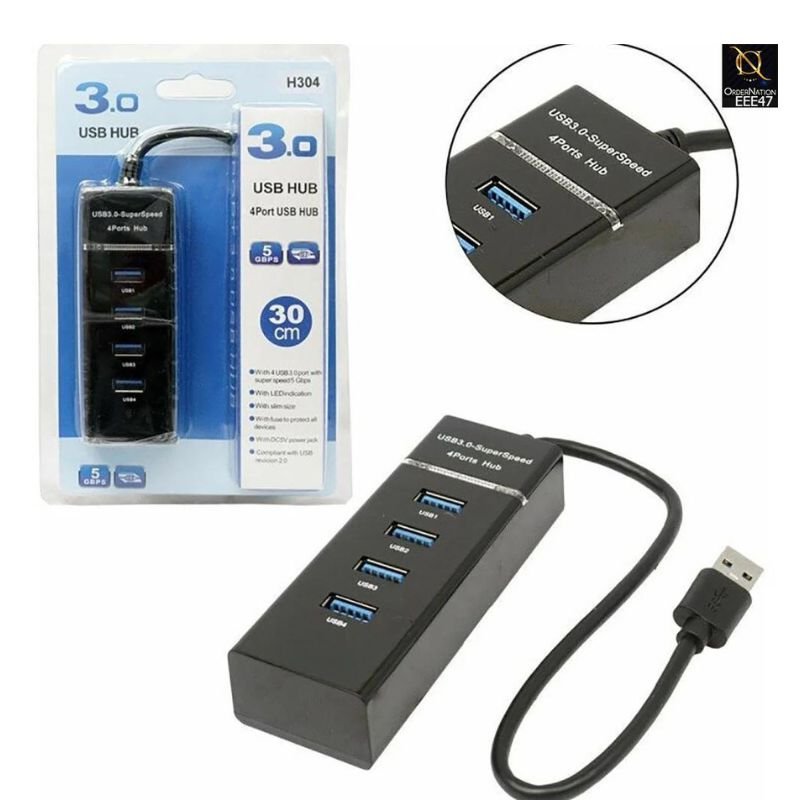
لا توجد مراجعات حتى الآن.