1. **Unboxing and Preparation**: Begin by unboxing the YD K2 HD WiFi PTZ Network Smart Camera and its accessories. Ensure all components are present, including the camera, power adapter, mounting bracket, and screws.
2. **Placement**: Choose an ideal location for mounting the camera, ensuring it offers a clear view of the area you wish to monitor. Use the provided mounting bracket and screws to securely install the camera on a wall or ceiling.
3. **Power Connection**: Connect the camera to a power source using the supplied power adapter. Ensure the power source is stable and accessible to maintain uninterrupted surveillance.
4. **Network Setup**: Download and install the accompanying app for the YD K2 camera on your smartphone or tablet. Follow the app’s instructions to connect the camera to your WiFi network. Input your WiFi credentials as prompted, and ensure the camera is successfully connected to your network.
5. **Configuration and Monitoring**: Once the camera is connected, customize its settings through the app according to your preferences. Adjust features such as motion detection sensitivity, video quality, and recording schedules. You can then remotely monitor live video feeds, receive motion detection alerts, and playback recorded footage through the app, providing you with convenient and effective surveillance capabilities.
OMNIKEY 3121 CARD READER
CPT 79321 1-24 Ranchero Green Metal Car
Logitech Stereo Headset H390 Usb Connector
DOBE PS4 TP4 023B Charging STAND
XBOX ONE TOM CLANCY'S THE DIVISON 2 GAME CD
iPhone SE 2020 - 128 GB - White
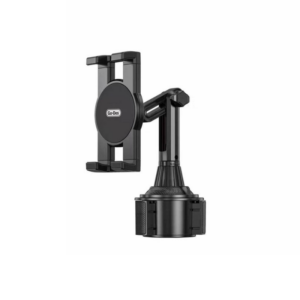
Go-des GD HD313 Car Cup Tablet Holder
Ahuja Utp30 Wired Tie Clip Mic
Cleo-TY Remote Control RC Military Truck B-24
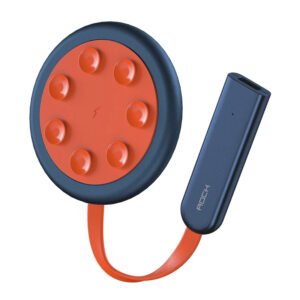
ROCK W24 Double side Quick CHARGER
Tolaye Ks06 Keyboard Stand
Onikuma Professional Gaming Headset K8
Anker D1105 Earbuds Aero Clip-2 Soundcore White
Cle Usb Fridge
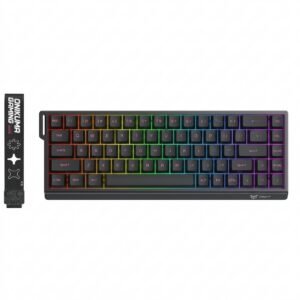
Onikuma Gaming Keyboard MT603
New Arrivals
Offers
Service & Repair


There are no reviews yet.