
-
×
 Fujifilm Instax Mini Evo Cinema Hybrid Instant Camera
1 × 154.900 OMR
Fujifilm Instax Mini Evo Cinema Hybrid Instant Camera
1 × 154.900 OMR -
×
 Cle Usb Fridge
1 × 5.900 OMR
Cle Usb Fridge
1 × 5.900 OMR
Subtotal: 160.800 OMR
SKU:
In stock
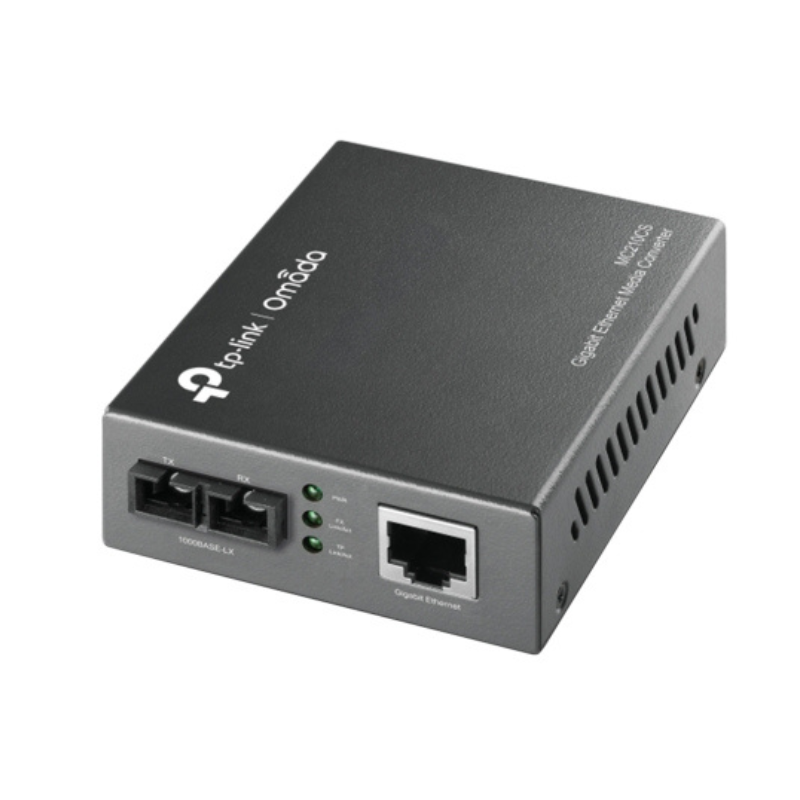
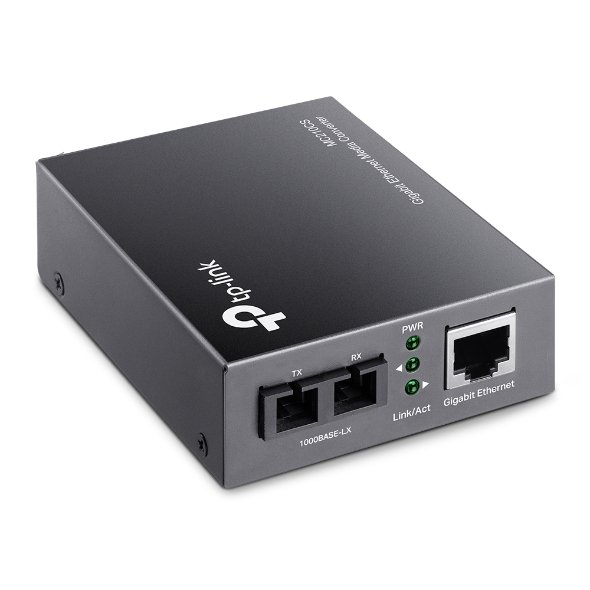
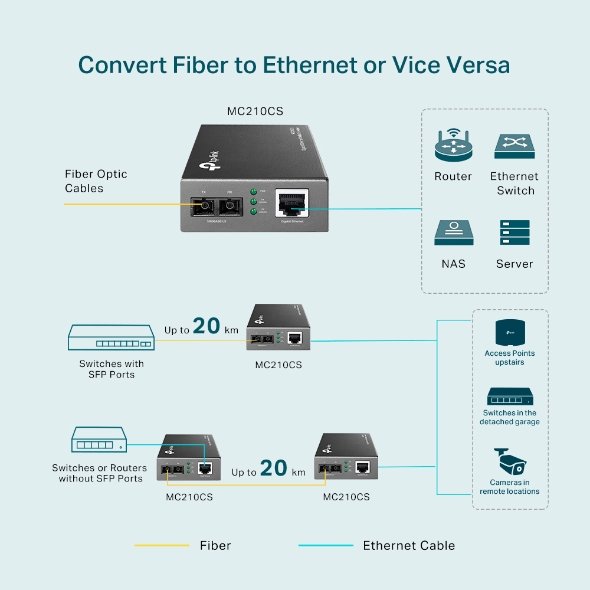
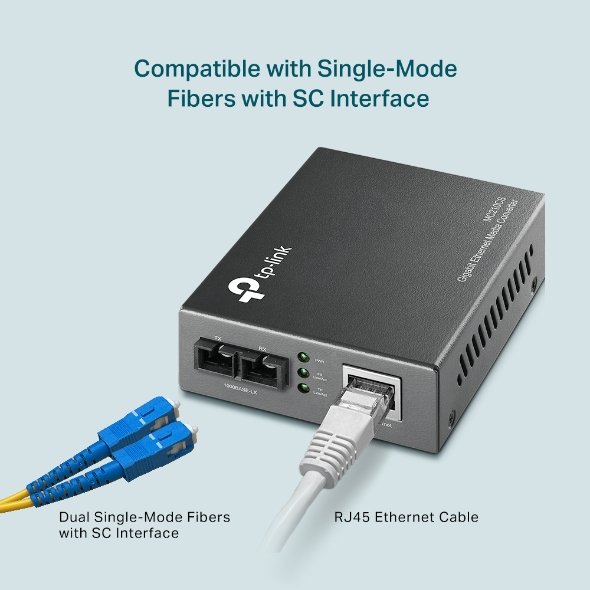
The TP-Link Gigabit Single Mode Media Converter MC210CS enables seamless network conversion from fiber optic to Ethernet with speeds up to 1Gbps. It supports long-distance communication over single-mode fiber and is ideal for expanding or bridging networks over greater distances.
8.950 OMR
In stock
Remove the media converter and accessories from the packaging.
Ensure all parts are present: MC210CS Media Converter, power adapter, and quick installation guide.
Take the single-mode fiber optic cable and connect one end to the fiber port (SFP) on the MC210CS.
Ensure the cable is securely plugged into the converter’s SFP port.
Connect one end of an Ethernet cable to the RJ45 port of the media converter.
Plug the other end of the Ethernet cable into your network device (e.g., switch, router, or computer).
Plug the power adapter into the media converter and connect it to a power outlet.
The device should power on automatically once connected to a power source.
Check the LED lights on the media converter to ensure proper functioning.
Power LED should be solid green when powered on.
Link/Act LED should blink or remain solid depending on the connection status.
Fiber LED should indicate connectivity when the fiber link is properly established.
Verify the network connection by checking the device connected to the Ethernet port.
You should now have a stable network connection between the fiber optic cable and Ethernet network.
Place the media converter in a location that allows for proper cable management.
Ensure all cables are securely connected to avoid accidental disconnections.
If no connection is established, check the fiber optic cable for damage or ensure it’s properly plugged into both the media converter and the network device.
Double-check the SFP module type for compatibility if the media converter fails to recognize the fiber connection.
 New Arrivals
 Offers
 Service & Repair

There are no reviews yet.