
-
×
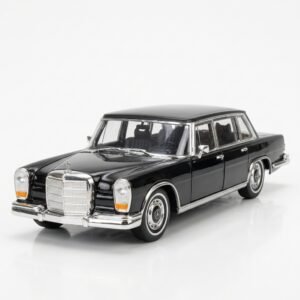 Welly Metal Car Mercedes Benz 600 Size 1.24 WL-24121W
2 × 12.900 OMR
-
×
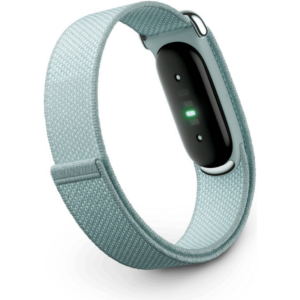 Google Fitbit Air Screen less Fitness & Health Tracking Band Fog
1 × 51.900 OMR
-
×
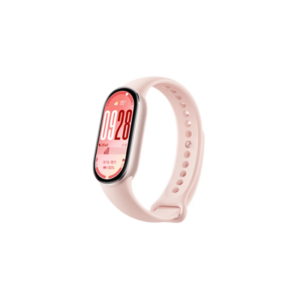 Xiaomi M2459B1 Smart Band 10 Mystic Rose
1 × 14.900 OMR
-
×
 Cle Usb Fridge
1 × 5.900 OMR
-
×
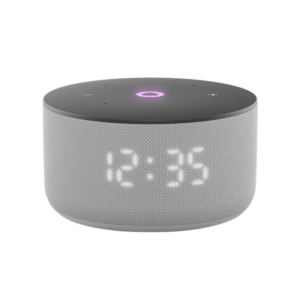 Yasmina Mini Smart Portable Bluetooth Speaker Grey
1 × 24.900 OMR
-
×
 DOBE PS4 TP4 016 Mobile Phone CLAMP
1 × 1.900 OMR
-
×
 DOBE PS4 TP4 023B Charging STAND
1 × 6.900 OMR
-
×
 OMNIKEY 3121 CARD READER
2 × 7.900 OMR
-
×
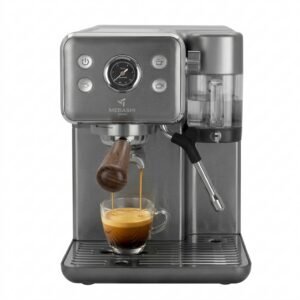 Mebashi 3 In 1 Coffee Machine ME-ECM2506
1 × 49.900 OMR
-
×
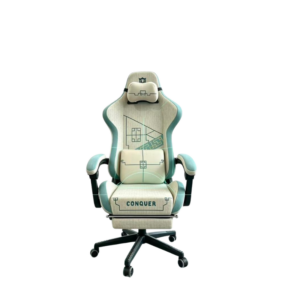 Cleo-GA Lxradeo Ergonomic Gaming Chair
1 × 49.900 OMR
-
×
 Lavalier Microphone Lj02
1 × 1.800 OMR
-
×
 WAHL 8467 SUPER TAPER
1 × 19.900 OMR
-
×
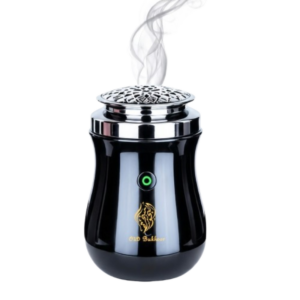 Cleo-EL Portable Electronic Bakhoor BK-52
1 × 4.900 OMR
-
×
 Sandisk Ultra 150Mb S Usb Type C Flash Drive 32Gb
1 × 2.500 OMR
-
×
 Bm 13k Bee Melodica
2 × 5.900 OMR
-
×
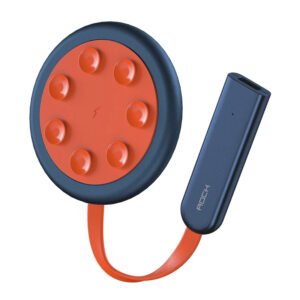 ROCK W24 Double side Quick CHARGER
1 × 5.200 OMR
Subtotal: 293.900 OMR
 New Arrivals
 Offers
 Service & Repair


There are no reviews yet.