1. **Power On**: Start by plugging in the TOSHIBA TY-CKU310 CD/USB Cassette Recorder and switching it on using the power button. Typically, this button is located on the front or top of the device.
2. **Source Selection**: Choose the desired playback source by pressing the appropriate source button. The TOSHIBA TY-CKU310 supports playback from CDs, USB devices, and cassette tapes. Select the CD, USB, or cassette mode depending on your preferred source.
3. **CD Playback**: If opting for CD playback, insert a CD into the CD tray on the front of the recorder. The recorder will automatically detect the CD and begin playback. Use the playback controls to play, pause, skip tracks, or adjust the volume as needed.
4. **USB Playback**: To play audio files from a USB device, insert the USB flash drive into the USB port on the recorder. The recorder will recognize the USB device and display the available audio files. Use the control buttons or remote to navigate through the files and select the desired track for playback.
5. **Cassette Playback and Recording**: If using cassette mode, insert a cassette tape into the cassette deck of the recorder. Use the playback controls to play, pause, rewind, or fast forward the cassette tape. Additionally, you can use the recording function to record audio onto the cassette tape from CDs, USB devices, or external sources.
Following these steps will help you set up and enjoy the TOSHIBA TY-CKU310 CD/USB Cassette Recorder with ease.

 GIGABYTE LAN USB 3.0 TO LAN ADAPTER
1 × 4.500 OMR
 XBOX WIRELESS CONTROLLER-1914 GREEN
1 × 20.900 OMR
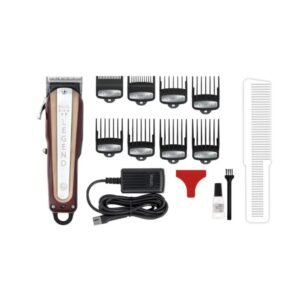 Wahl 8147 Professional 5-Star Legend Hair Clipper
1 × 52.800 OMR
 New Arrivals
 Offers
 Service & Repair


There are no reviews yet.