
 New Arrivals
 Offers
 Service & Repair

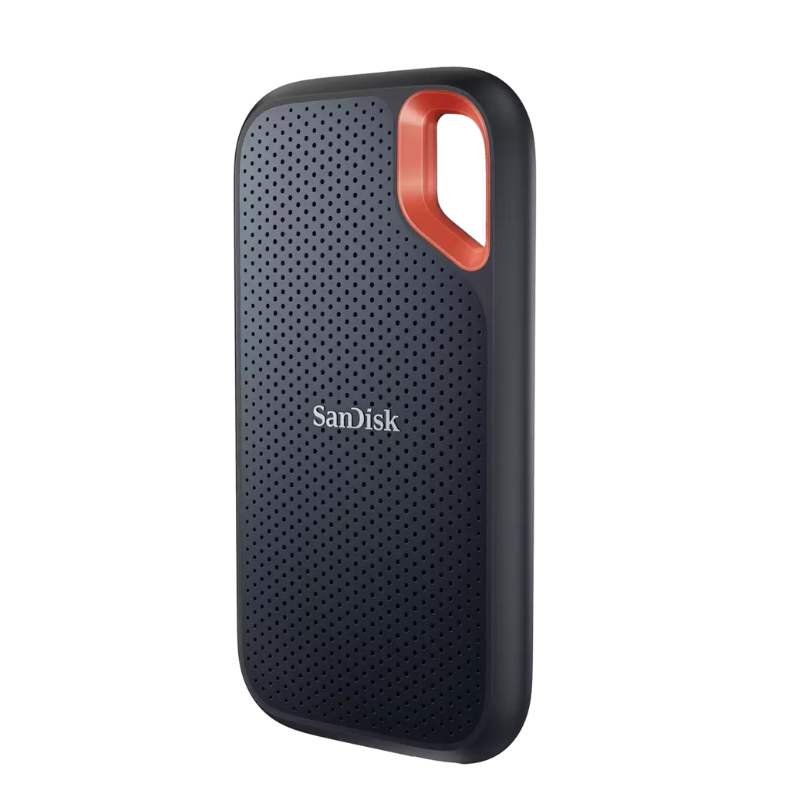


Sandisk Extreme Portable Ssd 4Tb 1050Mb
SKU:
Out of stock
The SanDisk 4TB Extreme Portable SSD offers high-speed storage with read speeds up to 1050MB/s and write speeds up to 1000MB/s. Designed for durability, it features IP65 water and dust resistance, 2-meter drop protection, and 256-bit AES hardware encryption for data security. Its USB 3.2 Gen 2 Type-C interface ensures fast connectivity, making it ideal for professionals needing reliable and portable storage solutions
Out of stock
Unbox and Inspect
-
Remove the SSD and accessories from the packaging.
-
Ensure all components are present and undamaged.
2. Connect the SSD
-
Use the included USB-C to USB-C cable or the USB-C to USB-A adapter to connect the SSD to your computer.
-
Ensure a secure connection on both ends.
3. Format the SSD (If Necessary)
-
If the SSD is not pre-formatted or you wish to change the file system:
-
On Windows:
-
Open File Explorer and locate the SSD.
-
Right-click on the SSD and select Format.
-
Choose the desired File System (e.g., NTFS for Windows or exFAT for cross-platform compatibility).
-
Optionally, assign a Volume Label.
-
Click Start to begin the formatting process.
-
-
On macOS:
-
Open Disk Utility.
-
Select the SSD from the list on the left.
-
Click on the Erase tab.
-
Choose the desired Format (e.g., APFS or exFAT).
-
Click Erase to format the SSD.
-
-
4. Transfer Files
-
Drag and drop files to and from the SSD as needed.
-
For large files, consider using a file transfer utility for better management.
5. Eject the SSD Safely
-
Before disconnecting, ensure all file operations are complete.
-
On Windows, right-click the SSD in File Explorer and select Eject.
-
On macOS, drag the SSD icon to the Trash or click the Eject button next to it in Finder.
6. Store Properly
-
After use, store the SSD in a cool, dry place away from direct sunlight.
-
Use the included carabiner loop to attach it to a bag or belt loop for easy transport.
There are no reviews yet.