Samsung A25 Galaxy 8Gb 256Gb 5G
1. Powering On: Begin by locating the power button on the side or top of your Samsung A25 Galaxy. Press and hold this button until the screen lights up and the Samsung logo appears. The device will boot up, and you’ll be prompted to set it up.
2. Initial Setup: Follow the on-screen instructions to set up your device. This typically involves selecting your language, connecting to a Wi-Fi network, signing in to your Google account, and accepting the terms and conditions. You can also transfer data from your old device if needed.
3. Exploring the Interface: Once the setup is complete, take some time to explore the interface of your Samsung A25. Swipe up or down on the home screen to access the app drawer and find all your installed apps. You can swipe left or right to navigate between home screens and widgets.
4. Customizing Settings: Open the app from the app drawer or the quick settings menu. Here, you can customize various aspects of your device, including display settings, sound settings, connections, and more. Adjust settings according to your preferences to optimize the user experience.
5. Using 5G Connectivity: The Samsung A25 Galaxy supports 5G connectivity, providing faster internet speeds and lower latency. To take advantage of 5G, ensure that you’re in an area with 5G coverage and that your carrier plan includes 5G access. You can then enjoy faster downloads, smoother streaming, and improved online gaming experiences on your device.
Discover samsung a14 price in oman
Hot Wheels Formula 1
Cleo-EL Portable Juicer Cup HP 188
Cle Usb Fridge
Philips 1000 Series Body Groomer BG1025/15
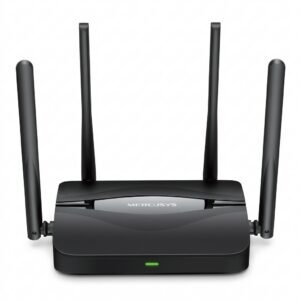
Mercusys BE3600 Dual Band Wi-Fi 7 Router MR25BE
YH 31 PS4 2 in 1 Charging Heat Sink
Haino Teko Smart Watch RW 34
Maisto Metal Car Porsche 911 GT3 Size 1.18 36458
Used NOKIA E90
New Arrivals
Offers
Service & Repair


There are no reviews yet.