1. **Unboxing**:
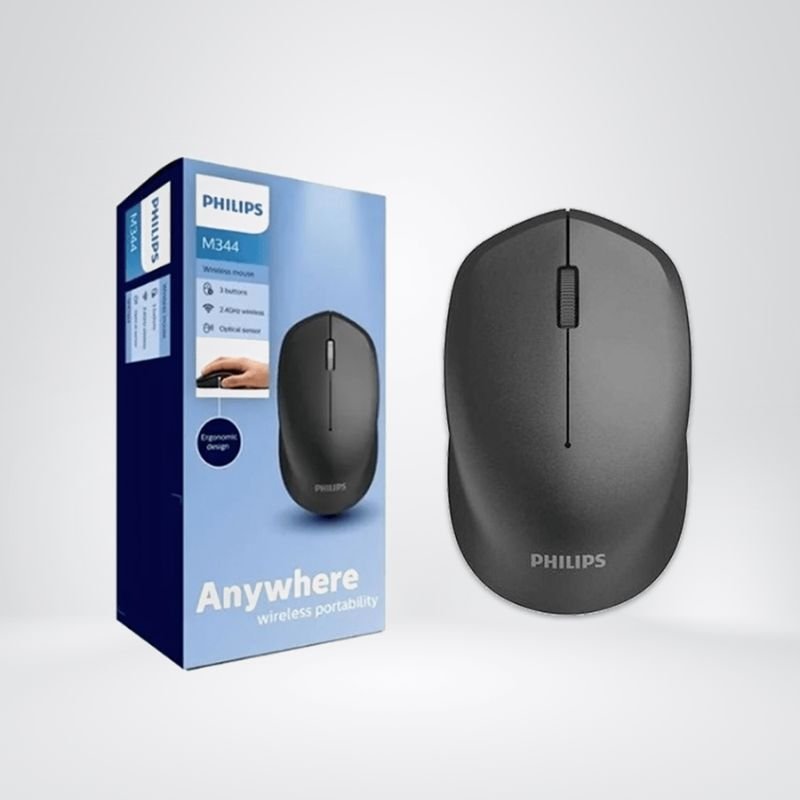
– Carefully open the packaging of the Philips M344 Wireless Mouse.
– Ensure that all components are included, typically the wireless mouse itself and a USB receiver for wireless connectivity.
2. **Battery Installation**:
– Check if your Philips M344 Wireless Mouse requires batteries. If it does, open the battery compartment usually located on the bottom of the mouse.
– Insert the required batteries (usually AA or AAA) according to the polarity indicated inside the compartment.
– Close the battery compartment securely.
3. **USB Receiver Setup**:
– Locate the USB receiver that came with the mouse.
– Insert the USB receiver into an available USB port on your computer or laptop.
– Ensure that the USB receiver is securely inserted to establish a stable connection.
4. **Powering On**:
– If the Philips M344 Wireless Mouse has an On/Off switch, toggle it to the “On” position.
– Some models may not have an On/Off switch and will activate automatically when batteries are installed and the USB receiver is connected.
5. **Driver Installation (Optional)**:
– In most cases, the Philips M344 Wireless Mouse will work plug-and-play without the need for additional drivers.
– However, if your operating system prompts you to install drivers, follow the on-screen instructions to complete the installation.
6. **Testing**:
– Move the Philips M344 Wireless Mouse around to ensure that it tracks smoothly on the surface.
– Click the left and right buttons to confirm that they register clicks correctly.
– If your mouse has additional buttons (such as side buttons), test them as well.
7. **Adjusting Settings (Optional)**:
– Some Philips M344 Wireless Mouse models may come with software that allows you to customize settings such as pointer speed, button functions, and scroll wheel behavior.
– If you wish to customize these settings, download and install the corresponding software from the Philips website and follow the instructions provided.
8. **Usage**:
– Once the Philips M344 Wireless Mouse is connected and working properly, use it as you would any other mouse.
– Move the mouse to control the pointer on your screen, click the buttons to interact with items, and use the scroll wheel to navigate documents or web pages.
9. **Shutting Down**:
– When not in use, turn off the Philips M344 Wireless Mouse if it has an On/Off switch to conserve battery life.
– Alternatively, if the mouse doesn’t have an On/Off switch, simply remove the USB receiver from your computer to disconnect the mouse.
10. **Maintenance**:
– Keep the surface of the Philips M344 Wireless Mouse clean by wiping it with a soft, dry cloth regularly.
– Replace the batteries when necessary to ensure consistent performance.
By following these steps, you can easily set up and use the Philips M344 Wireless Mouse for seamless navigation and interaction with your computer or laptop.

 Boya By Wm8 Pro K2 Uhf Dual Channel Wireless Microphone
1 × 76.800 OMR
Boya By Wm8 Pro K2 Uhf Dual Channel Wireless Microphone
1 × 76.800 OMR  Cpt Guitar 3713c
1 × 3.800 OMR
Cpt Guitar 3713c
1 × 3.800 OMR  Logitech Stereo Headset H390 Usb Connector
1 × 10.200 OMR
Logitech Stereo Headset H390 Usb Connector
1 × 10.200 OMR  New Arrivals
 Offers
 Service & Repair




There are no reviews yet.