1. **Connect the SSD to Your Device**: Start by plugging the Lexar SL200 Portable SSD into an available USB port on your computer or other compatible device. The SSD utilizes a high-speed USB 3.1 Gen 2 interface for fast data transfer, ensuring quick access to your files.
2. **Power On the Device**: If your device requires external power, ensure it’s connected and turned on. The SSD typically draws power through the USB connection, but some devices may require additional power for optimal performance.
3. **Access the SSD**: Once the Lexar SL200 Portable SSD is connected and powered on, your device should automatically recognize it as a storage device. Depending on your device’s operating system, you may see a notification or the SSD may appear as a new drive in your file explorer or desktop.
4. **Transfer or Access Files**: With the SSD recognized by your device, you can now transfer files to or from the SSD. Simply drag and drop files between your device’s storage and the SSD, or use file management software to copy, move, or delete files as needed.
5. **Eject the SSD**: After you’ve finished transferring or accessing files, it’s important to safely eject the Lexar SL200 Portable SSD from your device to avoid data corruption. On Windows, you can do this by right-clicking the SSD drive in File Explorer and selecting “Eject.” On Mac, you can drag the SSD icon to the Trash, or use the Eject button next to the SSD in Finder.
Bm 13k Bee Melodica
Biba Flute Deluxe
Tolaye Ks06 Keyboard Stand
YH 31 PS4 2 in 1 Charging Heat Sink
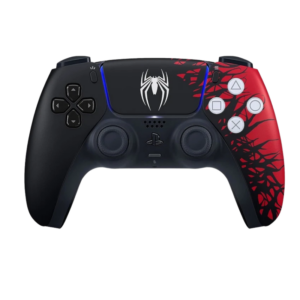
Sony DualSense Wireless Controller Spider-Man 2
Used Nokia X3 02 Touch
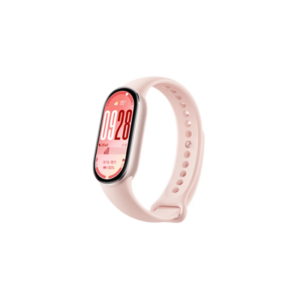
Xiaomi M2459B1 Smart Band 10 Mystic Rose
Cle Usb Fridge
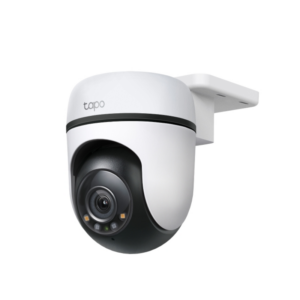
Tapo Outdoor Security Wi Fi Camera C500 1080p
Ahuja Utp30 Wired Tie Clip Mic
SONY PS4 NIOH 2 GAME CD
WAHL 3615 Cordless Mobile shaver
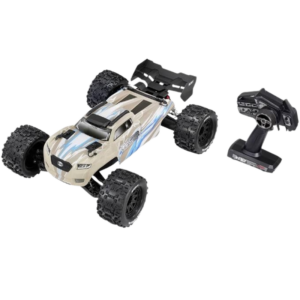
Cleo-TY Remote Control FS Racing Sniper RC Car 53711
Boya By Wm4 Pro K3 2.4ghz Wireless Microphone System
OMNIKEY 3121 CARD READER
New Arrivals
Offers
Service & Repair

There are no reviews yet.