1. **Inspect the Laptop**: Before turning on the laptop, inspect it for any physical damage, such as cracks, dents, or scratches. Check the screen, keyboard, ports, and overall condition of the laptop.
2. **Power On**: Press the power button located on the laptop’s keyboard or near the edge of the laptop to turn it on. Wait for the laptop to boot up, which may take a few moments.
3. **Setup**: If the laptop has been reset to factory settings, you’ll need to go through the initial setup process. Follow the on-screen instructions to select your language, region, time zone, and set up user accounts.
4. **Connect to Wi-Fi**: Once the initial setup is complete, connect the laptop to a Wi-Fi network. Click on the Wi-Fi icon in the system tray (usually located in the bottom-right corner of the screen) and select the network you want to connect to. Enter the Wi-Fi password if prompted.
5. **Explore the Desktop**: Once connected to the internet, take some time to familiarize yourself with the laptop’s desktop interface. This may include the desktop background, icons, taskbar, and start menu.
6. **Update Software**: Check for any available software updates for the operating system and other installed programs. Updates can improve security, stability, and performance. Go to the settings or control panel to access the update options.
7. **Install Antivirus Software**: To protect your laptop from malware and viruses, consider installing antivirus software. You can download and install a trusted antivirus program from the internet or use built-in security features if available.
8. **Customize Settings**: Adjust the laptop’s settings according to your preferences. This may include display settings, power options, keyboard shortcuts, and more. Explore the control panel or settings menu to make changes.
9. **Install Applications**: Install any additional applications or programs you need for work, school, or personal use. You can download and install software from the internet or use pre-installed app stores or marketplaces.
10. **Backup Data**: It’s a good idea to regularly back up your data to prevent loss in case of hardware failure or other issues. Use external hard drives, cloud storage services, or backup software to create backups of important files and documents.
11. **Maintenance**: Regularly maintain your laptop by cleaning the keyboard, screen, and ports with a soft, dry cloth. Keep the laptop’s software updated and perform routine scans for malware and viruses.
12. **Shutdown or Sleep**: When you’re finished using the laptop, properly shut it down or put it to sleep to conserve battery life and prevent data loss. Click on the power icon in the start menu and select the shutdown or sleep option.
Following these steps will help you effectively use a used Lenovo ThinkPad X131e laptop and make the most out of its features and capabilities.
Logitech Stereo Headset H390 Usb Connector
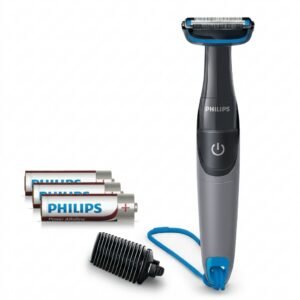
Philips 1000 Series Body Groomer BG1025/15
Welly Metal Car Jeep Jeepster Commando Roadster Size 1.24 WL-24117C-W
Maisto Metal Car Porsche 911 GT3 Size 1.18 36458
Cleo-MA Smart Bracelet Band Life Sensor 838
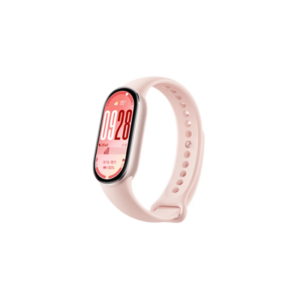
Xiaomi M2459B1 Smart Band 10 Mystic Rose
Jbl Bluetooth Speaker Authentics 300 Smart Home with Wifi Voice Assist
Welly Metal Car Jeep Jeepster Commando Station Wagon Size 1.24 WL-24117H-W
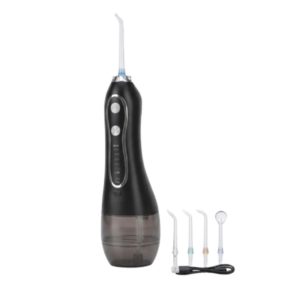
Blue Fire Hydrojet Portable Oral Irrigator BF-6
Mebashi Coffee Grinder ME-CG2285SR
Sayona 3 in 1 Blender SB4540 500W
Yesido Barcode Scanner EC21 High Speed Decoding
Cleo-TY Tesla 330 With Ev Stations Metal Car M92317
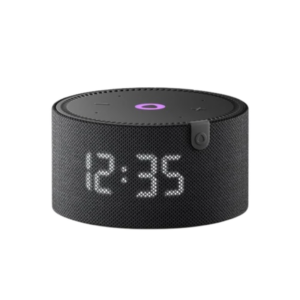
Yasmina Mini Smart Portable Bluetooth Speaker Black
Earldom Selfie Stick Monopod Selfie ZP26
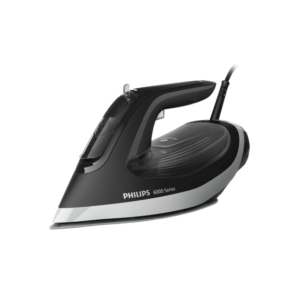
Philips Steam Iron Series 6000 DST6120/86 2600W
Hp Multimedia Speaker Dhe6001
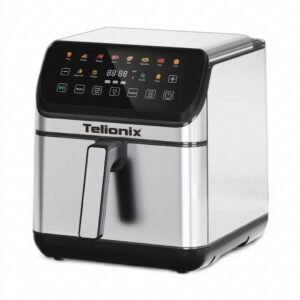
Telionix Electric Air Fryer 9L TAF4424
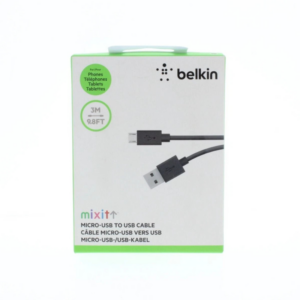
Belkin F2CU012bt Mixit Cable Usb A to Micro 3mtr
Sean John Original Sunglasses SJS1011
Hot Wheels Deutschland Design
Jbn Jiabailun 80W/160W Tweeter
Omron Relay 14pin 12v Switch
Cleo-TY Football Soccer Game HT2330
Canon GI-46BK Magenta Ink Bottle
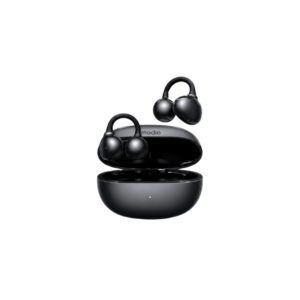
Modio Earbuds Ear-Clip OWS-02
USAMS Iphone 11 Pro Metal Camera Lens Glass Film
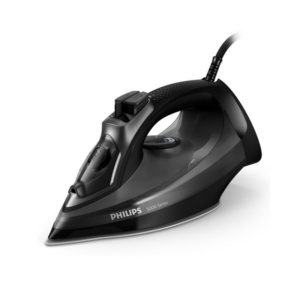
Philips Steam Iron Series 5000 DST5040/86 2600W
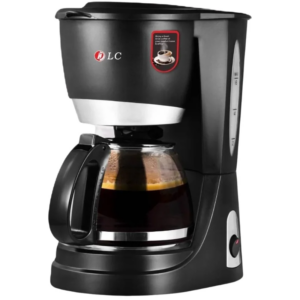
Dlc Coffee Maker DLC 7334
DOBE PS4 TP4 023B Charging STAND
4 In 1 Mobile Game Combo Pack
Philips Dry Iron HD1172/27
Dell Used Laptop Latitude 7280
New Arrivals
Offers
Service & Repair


There are no reviews yet.