1. **Unboxing**: Remove the camera and all accompanying accessories from the packaging. Check that all items listed in the user manual are included.
2. **Powering On**: Connect the camera to a power source using the provided power adapter and cable. The camera will power on automatically once connected.
3. **Download EZVIZ App**: Download and install the EZVIZ app on your smartphone or tablet. The app is available for both iOS and Android devices.
4. **Create an Account**: Open the EZVIZ app and create a new account. If you already have an EZVIZ account, simply log in using your existing credentials.
5. **Add Device**: Tap on the “Add Device” button in the app and select “Smart Camera” from the list of device types.
6. **Connect to Wi-Fi**: Follow the on-screen instructions to connect the camera to your Wi-Fi network. Make sure to enter the correct Wi-Fi password when prompted.
7. **Scan QR Code**: Use your smartphone or tablet to scan the QR code located on the bottom or back of the camera. This will automatically pair the camera with your EZVIZ account.
8. **Name Your Camera**: Give your camera a unique name to easily identify it within the EZVIZ app. You can choose a name like “Living Room Camera” or “Front Door Camera,” for example.
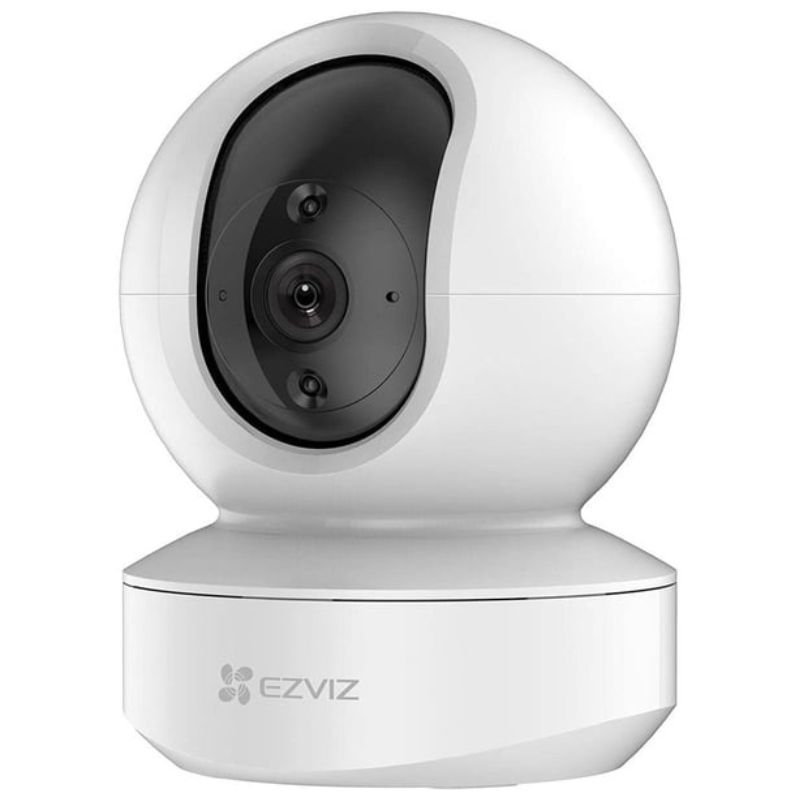
9. **Adjust Camera Position**: Use the pan and tilt controls in the EZVIZ app to adjust the camera’s position and angle. You can pan the camera left or right and tilt it up or down to get the desired view.
10. **Enable Features**: Explore the various features and settings available in the EZVIZ app, such as motion detection, two-way audio, and night vision. Customize these settings according to your preferences.
11. **View Live Stream**: Once the camera is set up, you can view live streaming footage from the camera directly within the EZVIZ app. Simply select the camera from the app’s home screen to access the live stream.
12. **Record and Playback**: Use the EZVIZ app to record video footage from the camera or playback recorded footage stored on the camera’s SD card or cloud storage.
13. **Adjust Settings**: Adjust camera settings such as video quality, motion detection sensitivity, and recording schedules to suit your needs.
14. **Notifications**: Enable push notifications in the EZVIZ app to receive alerts on your smartphone or tablet when motion is detected by the camera.
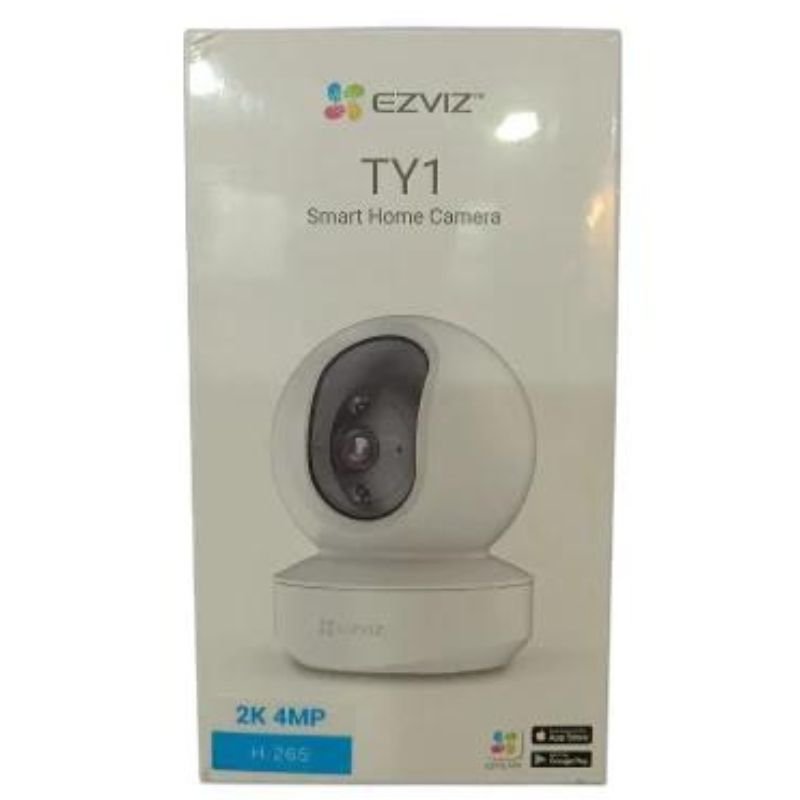
By following these steps, you can easily set up and use the EZVIZ CS-YT1 360 WIFI PAN TILT SMART HOME CAMERA to monitor your home remotely and ensure peace of mind.

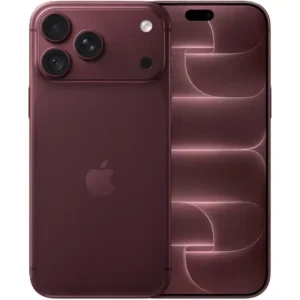 Apple Iphone 18 Pro Max 12gb 256gb 5g Gsm
1 × 598.500 OMR
Apple Iphone 18 Pro Max 12gb 256gb 5g Gsm
1 × 598.500 OMR  Bm 13k Bee Melodica
1 × 5.900 OMR
Bm 13k Bee Melodica
1 × 5.900 OMR  Cle Usb Fridge
1 × 5.900 OMR
Cle Usb Fridge
1 × 5.900 OMR  New Arrivals
 Offers
 Service & Repair

There are no reviews yet.