
-
×
 Apple Ipad Pro 12.9" 4th Gen Smart Keyboard Folio
2 × 94.900 OMR
Apple Ipad Pro 12.9" 4th Gen Smart Keyboard Folio
2 × 94.900 OMR
Subtotal: 189.800 OMR
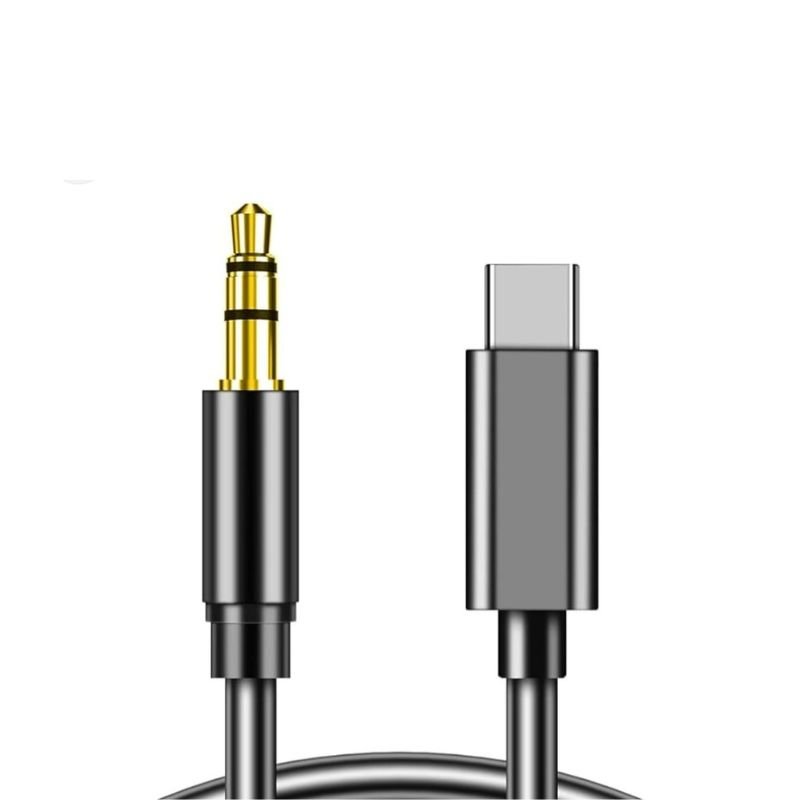
SKU: DigitPlus DP-A115 Digital USB-C to 3.5mm AUX LINE
Out of stock
The DigitPlus DP-A115 is a compact and versatile digital USB-C to 3.5mm AUX LINE adapter designed to enhance your audio experience. With its USB-C compatibility, it seamlessly connects to a wide range of devices, including smartphones, tablets, and laptops. This adapter ensures high-quality sound transmission, allowing you to enjoy your favorite music or podcasts with clarity and precision. Its sleek and portable design makes it convenient for on-the-go use, perfect for travelers and commuters alike. Say goodbye to compatibility issues and welcome superior audio performance with the DigitPlus DP-A115.
Out of stock
1. **Check Compatibility**: Ensure that your device has a USB-C port and that you want to connect it to a device with a 3.5mm AUX input. This adapter is commonly used with smartphones, tablets, and laptops.
2. **Inspect the Adapter**: Before use, inspect the adapter for any physical damage. Make sure the USB-C and 3.5mm connectors are clean and free from debris.
3. **Connect USB-C End**: Plug the USB-C end of the adapter into the USB-C port of your device. Ensure it is inserted firmly and securely.
4. **Connect 3.5mm End**: Once the USB-C end is connected, plug the 3.5mm end of the adapter into the AUX input of the device you want to connect to, such as headphones, speakers, or a car stereo system.
5. **Device Recognition (if applicable)**: Some devices may require recognition of the adapter. If prompted, follow the on-screen instructions to allow your device to recognize the adapter.
6. **Audio Settings**: Depending on your device, you may need to adjust the audio settings to ensure that audio is routed through the adapter. Check your device’s audio settings and select the appropriate output source if necessary.
7. **Test Audio**: Play some audio on your device to test the connection. Ensure that the audio is coming through the connected device (headphones, speakers, etc.) as expected.
8. **Adjust Volume**: If needed, adjust the volume on both your device and the connected audio device to your desired level.
9. **Enjoy**: Once everything is set up and working correctly, sit back and enjoy your audio experience with the DigitPlus DP-A115 adapter.
10. **Disconnect Safely**: When you’re finished using the adapter, safely remove it from both devices by gently pulling out the USB-C and 3.5mm connectors. Store it in a safe place for future use.
 New Arrivals
 Offers
 Service & Repair

There are no reviews yet.