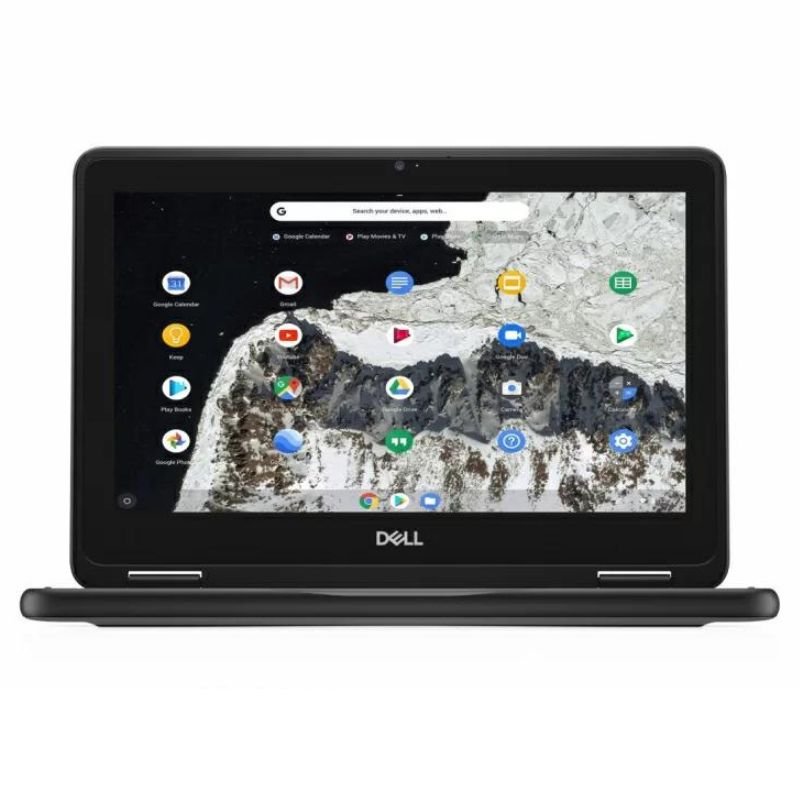
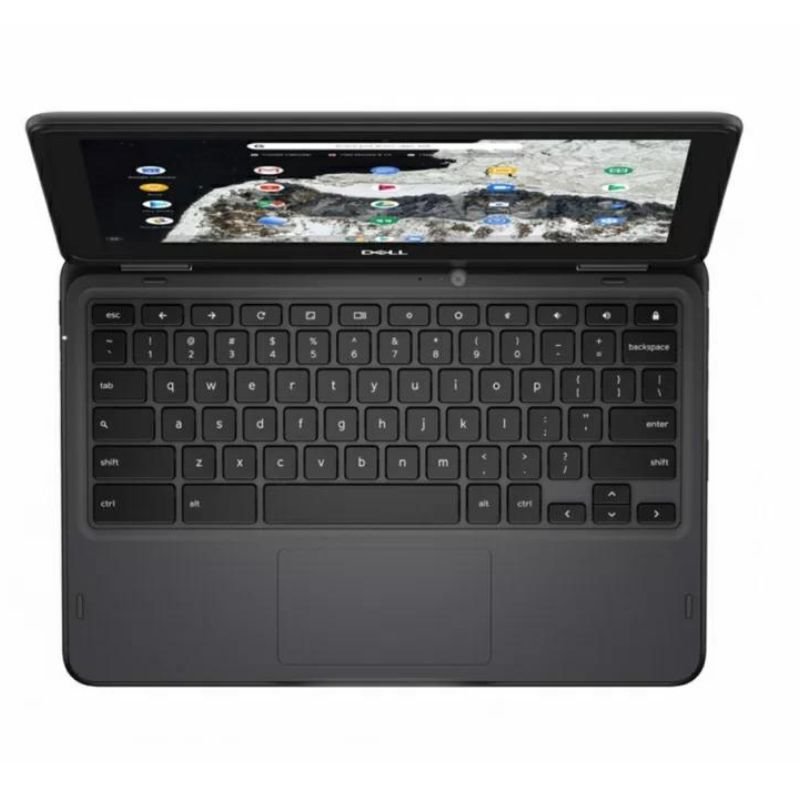
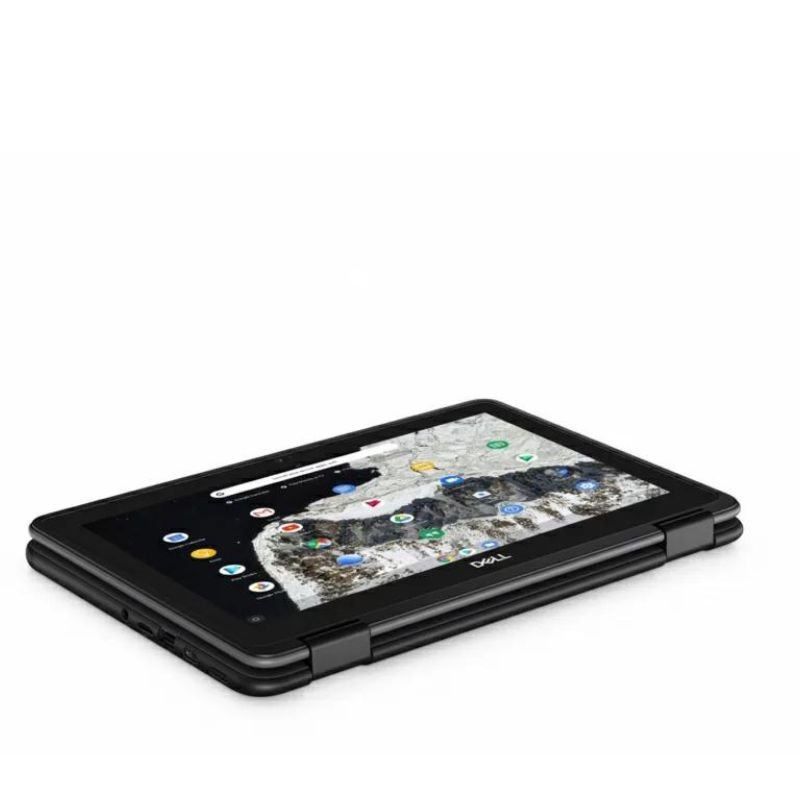
1. **Inspect the Chromebook**: Before turning on the Chromebook, inspect it for any physical damage such as scratches, dents, or signs of wear and tear. Ensure the screen, keyboard, ports, and overall condition are satisfactory.
2. **Power On**: Press the power button located on the Chromebook’s keyboard or on the side of the device to turn it on. Wait for the Chromebook to boot up, which usually takes only a few moments.
3. **Initial Setup**: If the Chromebook has been reset to factory settings, you’ll need to go through the initial setup process. Follow the on-screen instructions to select your language, region, time zone, and connect to Wi-Fi.
4. **Sign In**: Sign in to your Google account or create a new one if you don’t have an account already. Your Google account is essential for accessing various Google services and syncing data across devices.
5. **Explore the Desktop**: Once signed in, take some time to familiarize yourself with the Chromebook’s desktop interface, which consists mainly of the Chrome browser. You’ll find the app launcher, taskbar, and other navigation elements.
6. **Connect to Wi-Fi**: If you haven’t already done so during the initial setup, connect the Chromebook to a Wi-Fi network. Click on the
Earldom Car Mp3 BR01 Bluetooth Receiver
Bella contact lens Natural collection with power
Sony PS5 Dual Sense Wireless Controller - Red
Boya Wireless Microphone By Wm4 Pro
Dobe Keyboard Tp4 822
Bm 13k Bee Melodica
Cleo Plastic Recorder
Boya By Wm4 Pro K3 2.4ghz Wireless Microphone System
New Arrivals
Offers
Service & Repair


There are no reviews yet.