
-
×
 Canon Ink Paper Set Postcard Size Rp108
1 × 12.400 OMR
Canon Ink Paper Set Postcard Size Rp108
1 × 12.400 OMR -
×
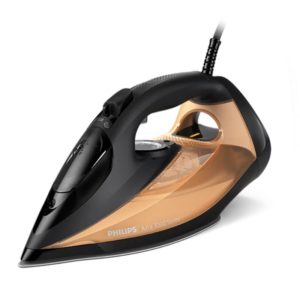 Philips Azur Series 7000 Steam Iron DST7040/86 2800W
1 × 34.900 OMR
Philips Azur Series 7000 Steam Iron DST7040/86 2800W
1 × 34.900 OMR -
×
 Canon GI-490 Yellow
1 × 4.800 OMR
Canon GI-490 Yellow
1 × 4.800 OMR -
×
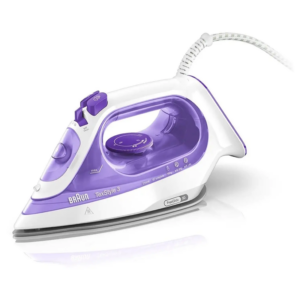 Braun TexStyle 3 Steam Iron SI3042VI 2350W
2 × 18.900 OMR
Braun TexStyle 3 Steam Iron SI3042VI 2350W
2 × 18.900 OMR -
×
 Max Bms 135 Boom Mic Stand
1 × 9.500 OMR
Max Bms 135 Boom Mic Stand
1 × 9.500 OMR -
×
 Boya By Wm4 Pro K3 2.4ghz Wireless Microphone System
1 × 49.900 OMR
Boya By Wm4 Pro K3 2.4ghz Wireless Microphone System
1 × 49.900 OMR -
×
 WAHL HOME PRO 300 SERIES HAIRCUT KIT
1 × 15.800 OMR
WAHL HOME PRO 300 SERIES HAIRCUT KIT
1 × 15.800 OMR -
×
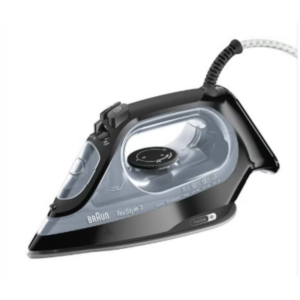 Braun TexStyle 3 Steam Iron SI3055BK 2400W
1 × 22.900 OMR
Braun TexStyle 3 Steam Iron SI3055BK 2400W
1 × 22.900 OMR -
×
 OMNIKEY 3121 CARD READER
1 × 7.900 OMR
OMNIKEY 3121 CARD READER
1 × 7.900 OMR -
×
 Apple Ipad Pro 12.9" 4th Gen Smart Keyboard Folio
1 × 94.900 OMR
Apple Ipad Pro 12.9" 4th Gen Smart Keyboard Folio
1 × 94.900 OMR -
×
 Samsung Charger Galaxy Ep-T2510 Type C 25w With Cable 1mtr
1 × 6.900 OMR
Samsung Charger Galaxy Ep-T2510 Type C 25w With Cable 1mtr
1 × 6.900 OMR -
×
 Canon GI-41 Ink Bottle, Magenta
1 × 4.800 OMR
Canon GI-41 Ink Bottle, Magenta
1 × 4.800 OMR
Subtotal: 302.500 OMR
 New Arrivals
 Offers
 Service & Repair


There are no reviews yet.