
-
×
 DOBE PS4 TP4 023B Charging STAND
1 × 6.900 OMR
DOBE PS4 TP4 023B Charging STAND
1 × 6.900 OMR
Subtotal: 6.900 OMR
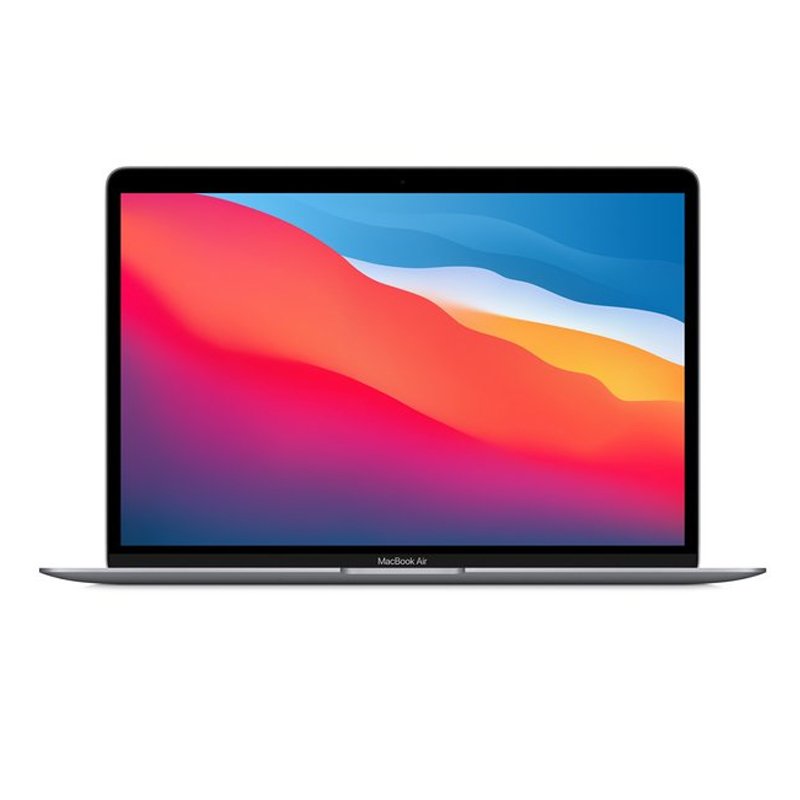
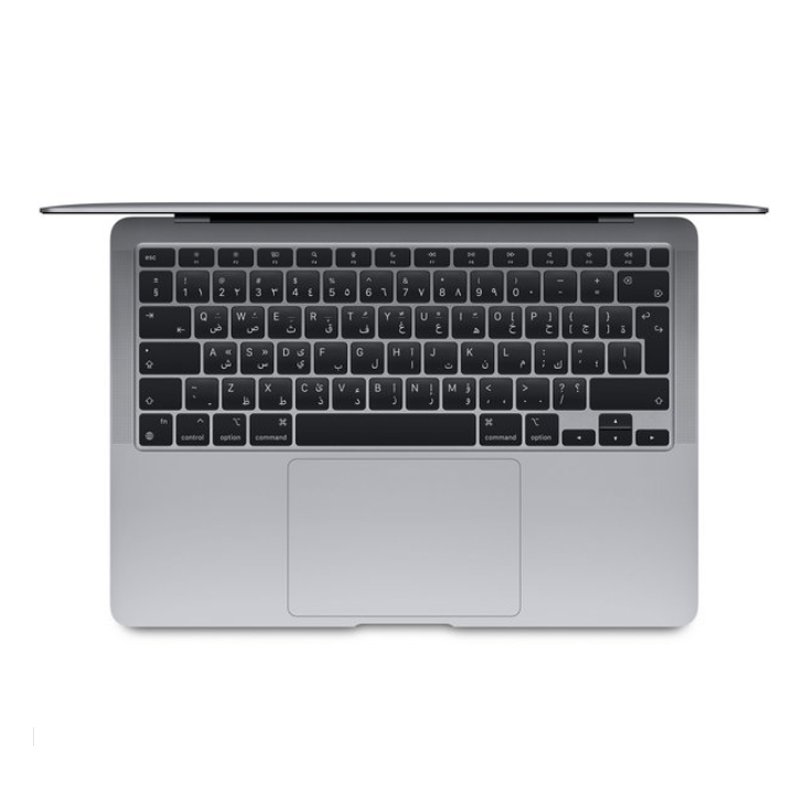
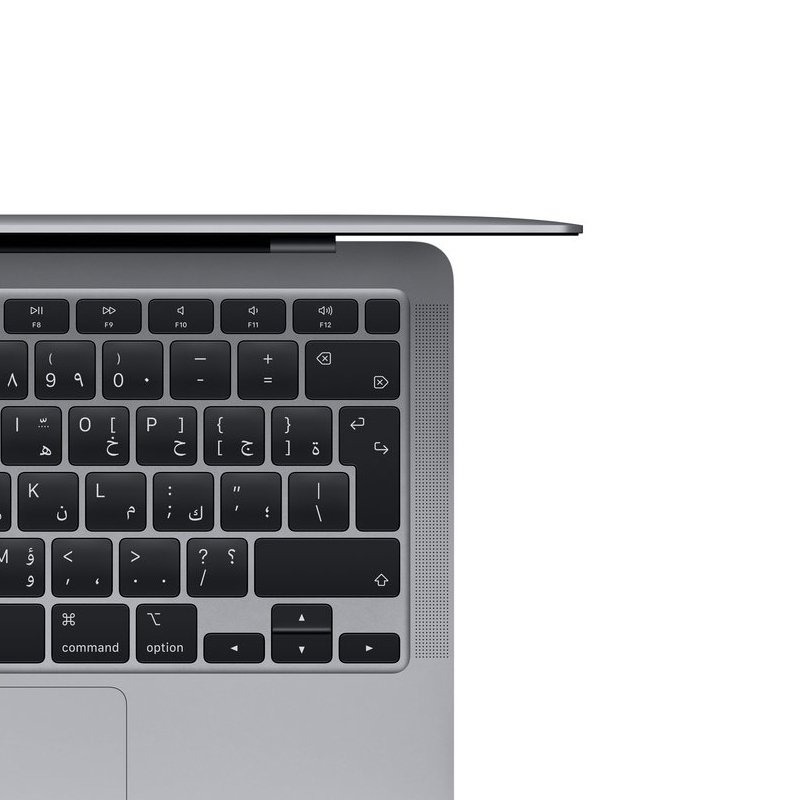
SKU: MacBook Air M1 Chip Arabic Keyboard
Out of stock
1. **Unboxing**: Upon receiving your Apple MacBook Air with the M1 Chip and Arabic Keyboard, carefully unbox the device. Remove all packaging materials, including the outer box, and ensure that all necessary components are present, such as the MacBook Air itself, charging cable, and any documentation.
2. **Initial Setup**: Power on the MacBook Air by pressing the power button located on the keyboard. Follow the on-screen instructions to set your preferred language and region, ensuring that Arabic is selected for the keyboard layout. Connect to a Wi-Fi network and sign in with your Apple ID or create a new one if necessary.
3. **Customizing Settings**: Once the initial setup is complete, navigate to the System Preferences from the Apple menu () located in the top-left corner of the screen. In the System Preferences, select “Keyboard” and then “Input Sources.” Click on the “+” button to add Arabic as an input source. You can also customize other settings such as keyboard shortcuts and input methods to suit your preferences.
4. **Getting Started**: Familiarize yourself with the Arabic keyboard layout if you are not already accustomed to it. Notice the differences in character placement compared to a standard English keyboard. Begin typing and practicing using the Arabic keyboard layout to become more proficient with it.
5. **Exploring Features**: Take some time to explore the features and capabilities of your MacBook Air with the M1 Chip. Experiment with different applications, multitasking features, and gestures on the trackpad. Enjoy the seamless performance and efficiency provided by the M1 Chip while utilizing the convenience of the Arabic keyboard for your language needs.
 New Arrivals
 Offers
 Service & Repair

There are no reviews yet.