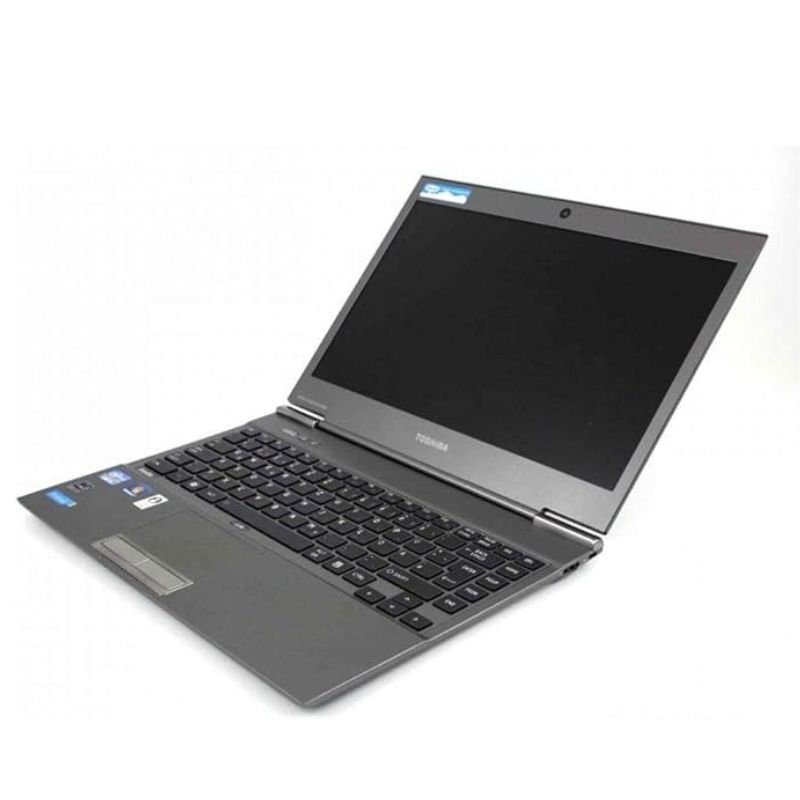
1. **Unboxing**: Start by carefully unboxing the Toshiba Portege Z930 Ultrabook. Remove all packaging materials and set them aside.
2. **Inspect Contents**: Check the box contents to ensure everything is included as advertised. You should find the Ultrabook, power adapter, battery (if removable), user manual, and any additional accessories.
3. **Charging (if needed)**: If the battery is not pre-charged, connect the power adapter to the Ultrabook and a power source. Allow the Ultrabook to charge fully before initial use.
4. **Power On**: Once charged (if needed), press the power button to turn on the Toshiba Portege Z930 Ultrabook. Follow any on-screen prompts to complete the initial setup.
5. **Language and Region**: Select your preferred language and region for the operating system interface.
6. **Set Up User Account**: Create or sign in with your user account to personalize the Ultrabook’s settings and preferences.
7. **Connect to Wi-Fi**: Connect the Toshiba Portege Z930 to a Wi-Fi network to access the internet and online services. Follow the on-screen instructions to find and connect to a Wi-Fi network.
8. **Software Updates**: Check for and install any available software updates for the operating system and pre-installed software. This ensures that you have the latest features, performance improvements, and security patches.
9. **Customize Settings**: Customize various settings on the Ultrabook, such as display preferences, power management options, keyboard settings, and more, according to your preferences.
10. **Connect Peripherals (Optional)**: Connect external peripherals, such as a mouse, keyboard, monitor, or printer, to expand the functionality of the Toshiba Portege Z930 Ultrabook.
11. **Install Applications**: Install any additional applications or software you need for work, productivity, entertainment, or other purposes. You can download and install apps from the Microsoft Store or third-party sources.
12. **Security Measures (Optional)**: Set up security measures such as passwords, PINs, or biometric authentication (if available) to protect your data and privacy.
13. **Backup and Data Transfer (Optional)**: If you have data from a previous device, you can transfer it to the Toshiba Portege Z930 Ultrabook using external storage, cloud services, or data transfer tools.
14. **Maintenance**: Follow any maintenance instructions provided in the user manual to keep your Ultrabook in optimal condition. This may include cleaning the screen and keyboard, updating software regularly, and avoiding exposure to extreme temperatures or liquids.
15. **Enjoy**: With the setup complete, enjoy using the Toshiba Portege Z930 Ultrabook for work, entertainment, browsing the web, and more. Its slim and lightweight design, along with its powerful performance, makes it an ideal companion for on-the-go productivity.
AHUJA UTP30 WIRED TIE CLIP MIC
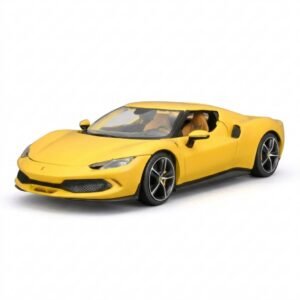
BBurago Metal Car Ferrari 296 GTB Size 1.18 18-16018
PROFESSIONAL STREAMING PLAYER STAND L1
نوكيا 9300
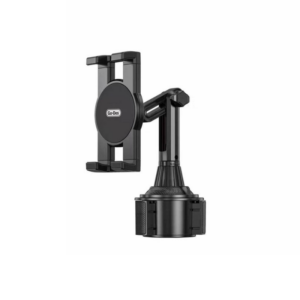
حامل تابلت للسيارة من Go-des GD HD313
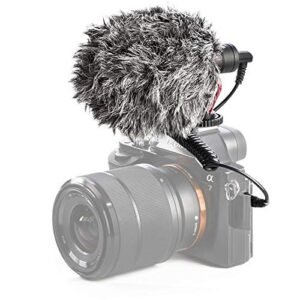
ميكروفون كاندك DC C9 كارديويد ميكروفون
MEGA UTR 30 AMPLIFIER
Sony PS5 The Pathless Game CD
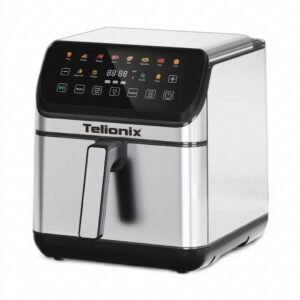
Telionix Electric Air Fryer 9L TAF4424
WRIST WATCH CK 102S BLOOD PRESSURE MONITOR
ثلاجة كلي أوسب
Dlc Double Hot Plate DLC220B
Belkin F2CU012bt Mixit Cable Usb A to Micro 3mtr
أقل سعر
الخدمة والإصلاح
أحدث

لا توجد مراجعات حتى الآن.