
 أقل سعر
 الخدمة والإصلاح

 أحدث
أحدث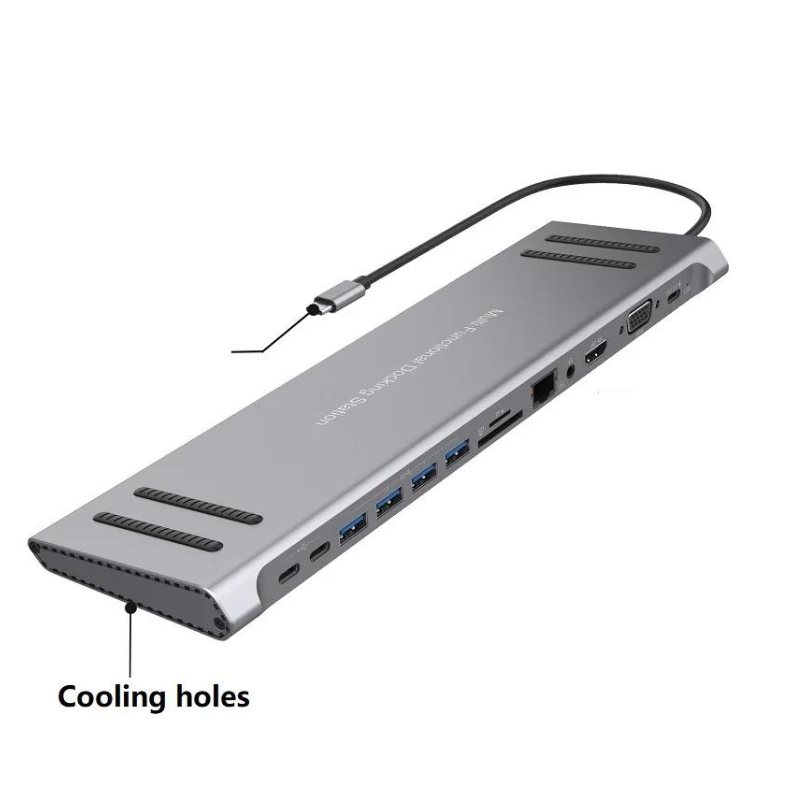
14 In 1 Type-c Docking Station with USB Hub
SKU: 14 In 1 Type-c Docking Station with USB Hub
متوفر في المخزون
The 14-in-1 Type-C Docking Station with USB Hub is a versatile and compact solution for expanding connectivity options for Type-C enabled devices. With 14 ports in total, it offers a wide range of connectivity, including multiple USB ports, HDMI, VGA, Ethernet, SD card reader, and more. This docking station provides seamless integration for laptops, tablets, and other devices, allowing users to connect peripherals, external displays, and transfer data with ease. Its sleek design and plug-and-play functionality make it an essential accessory for enhancing productivity and convenience in any workspace.
15.900 OMR
متوفر في المخزون
1. **Connect the Docking Station to Power**: Start by plugging in the docking station’s power adapter into a power outlet. This step ensures that the docking station is powered and ready to use.
2. **Connect the Type-C Cable to Your Device**: Use the included Type-C cable to connect the docking station to your compatible device, such as a laptop or tablet. Insert the Type-C connector into the corresponding port on your device.
3. **Connect External Devices**: Once the docking station is connected to your device, you can start connecting external devices to expand your device’s capabilities. Depending on your needs, you can connect peripherals such as USB flash drives, external hard drives, keyboards, mice, printers, or any other USB-compatible devices to the available USB ports on the docking station.
4. **Connect External Displays (if applicable)**: If you want to extend your device’s display or connect to an external monitor, you can do so using the HDMI or VGA ports on the docking station. Simply connect your external display’s cable to the corresponding port on the docking station.
5. **Adjust Settings (if necessary)**: Depending on your device and preferences, you may need to adjust settings to optimize the use of the docking station. This could involve configuring display settings, adjusting audio output preferences, or managing connected devices through your device’s settings menu.
لا توجد مراجعات حتى الآن.